![duel_logotype-1.png]](https://info.duel.tech/hs-fs/hubfs/duel_logotype-1.png?height=37&name=duel_logotype-1.png)
The Duel Platform sections where you'll need to add copy are:
- Scope of Work + T&Cs Copy
- Level Ups & Tiers Copy
- Welcome Message Copy
- Challenges Copy
- Overview Page Copy
- UI Copy
Scope of Work Copy
To set up the T&Cs and create your Scope of Work Challenge follow the video below.
Note formerly known as a Contract/Agreement.
Level Ups & Tiers Copy
💻 Navigate to Advocates > Groups > and click into the relevant group.
Please watch the following short video on how to set up the level ups & tiers copy:
Welcome Message Copy
💻 Navigate to Advocates > Group Profiles > and click into the relevant groups. Then head into General/Text, you’ll see the About message title and body fields.
Please watch the following short video on how to set up the welcome message:
Challenges Copy
💻 Navigate to Challenges > select a challenge or create a new challenge.
🛠 You can learn how to build challenges in Duel in the Challenge Building guide.
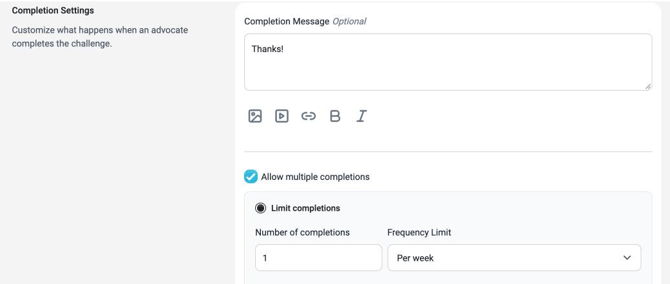
The challenge copy lives in Create a Challenge, in the Challenge Details, Instructions & Guidelines and Completion Settings sections:
| Public Challenge Name | The title the advocate sees, e.g. follow us on TikTok |
| Internal name (optional) | Click Add a different internal name to give the challenge a name for internal and admin use |
| Challenge Instructions | The challenge introduction and basic instructions for completing it, shown when an advocate opens the challenge |
| Approval Criteria (optional) | More detailed, or technical, instructions for completing the challenge |
| Completion Message (optional) | In Completion Settings. Shown to the advocate in a pop-up, with a Continue button, after they submit the challenge. For example: "Thanks for submitting! You'll hear from us once your entry is reviewed." Use it when a challenge gives a reward other than points, or to give extra support after a complex or difficult challenge. |
🚨 Always make sure to save any changes made on the bottom right hand side.
Overview Page Copy
The overview page copy is divided into two main sections: Overview Channels and the HTML Section that sits below.
-
HTML Section
💻 Navigate to Advocates > select Group Profiles > select the relevant group > Overview Page.
The HTML copy needs to be uploaded into the system. Go to Overview HTML > Select document and upload the HTML file via the File manager. Once uploaded you can preview the page using the preview button.
The Overview Page will be displayed in the third tab within your brand's portal under the Overview Channels Section.
-
Overview Channels Section
Please watch this short video on how to setup the modules within the overview channels section:
UI Copy
💻 Navigate to Advocates > Group Profiles and click into the relevant group. UI text is located in the General/Text Tab.
This is where you set up messages advocates see, such as Message shown when a submission is rejected, and where you customise what the portal calls certain things. For example, Term used for task items sets what challenges are called in the portal, such as "missions".
When you reject a challenge submission, you also pick a reason (and can add a note), which the advocate sees in the portal. The UI Text rejection message is the general message. See Challenge Rejection Feedback.