![duel_logotype-1.png]](https://info.duel.tech/hs-fs/hubfs/duel_logotype-1.png?height=37&name=duel_logotype-1.png)
You can insert images or GIFs directly into the Challenge Instructions or other copy areas within the challenge creation page.
Insert an Image
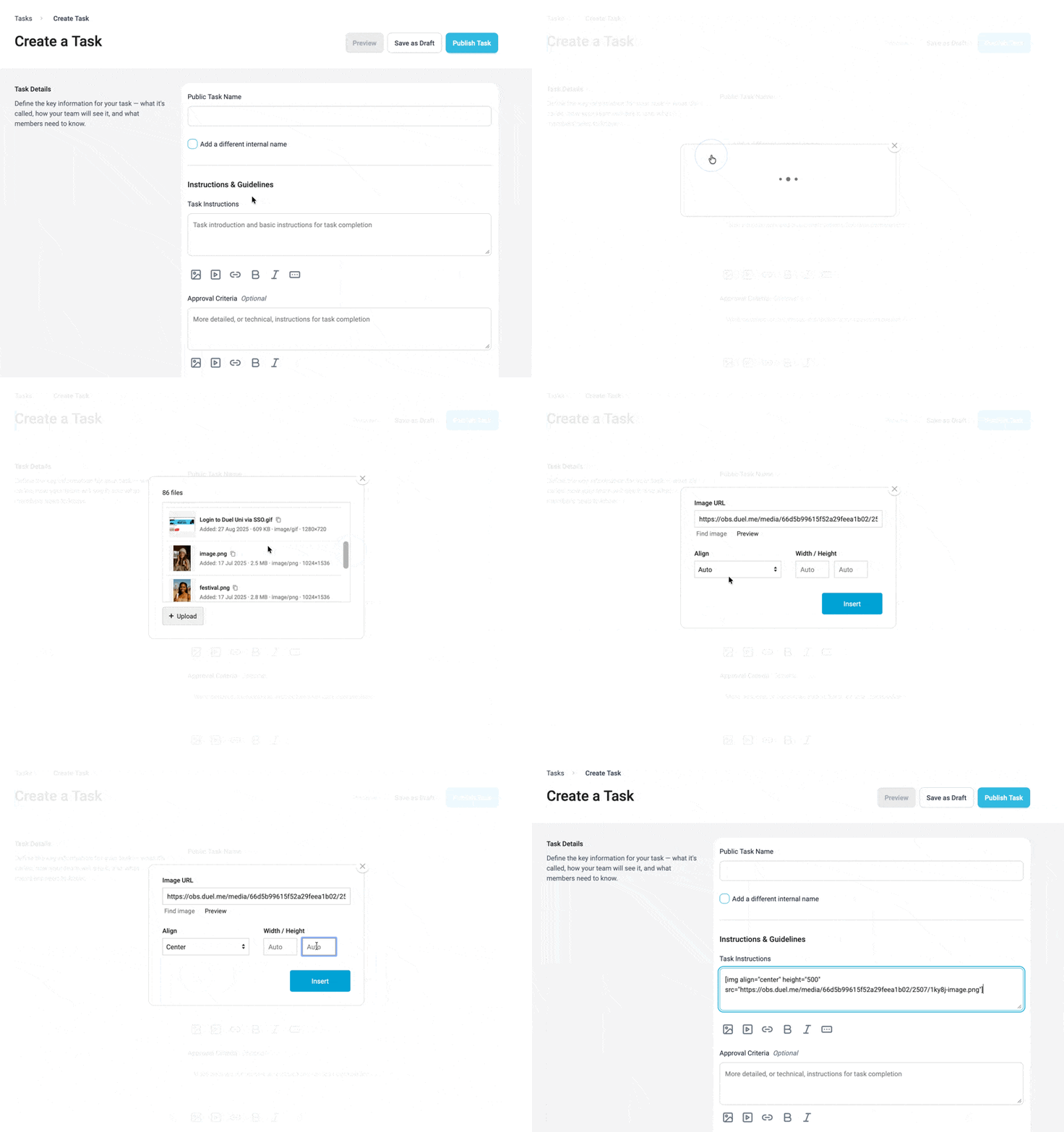
Click the Insert Image icon in the formatting toolbar. You can either paste a URL directly into the URL field or click Find Image to open the File Manager.
Select or Upload an Asset
If using Find Image, choose an existing asset from the File Manager or click Upload to add a new file. Once uploaded, select the asset and click Use Selection.
Adjust Formatting (optional)
Before inserting, you can choose alignment (left, centre, or right) and adjust the width and height in pixels if required.
Click Insert to add the image or GIF to your content. The asset will initially appear as code within your challenge copy. To see how it will display to advocates, click Preview to view the challenge with the image rendered correctly.