![duel_logotype-1.png]](https://info.duel.tech/hs-fs/hubfs/duel_logotype-1.png?height=37&name=duel_logotype-1.png)
You can add images or GIFs to Challenge Instructions on the Create a Challenge page, using the toolbar under the field.
Insert an image
Click Insert image in the toolbar under Challenge Instructions. In the window that opens, either paste a link into Image URL or click Find image to choose a file from your File Manager.
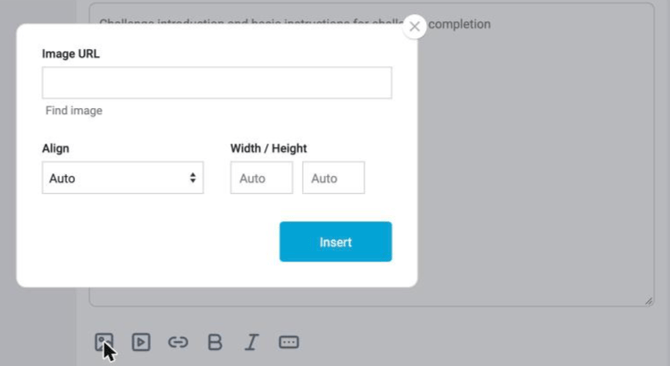
Choose or upload a file
In Find image, click a file's thumbnail to select it (a check mark appears), then click Use selection. Its link is added to Image URL. To add a new file, click Upload before selecting a file.
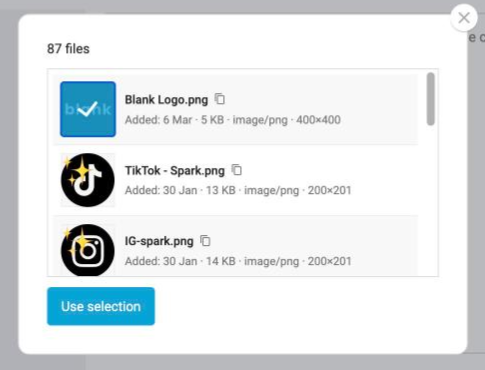
💡 Tip: the Find image list can't be searched. To find a file by name, go to Settings > File manager, search for it, click its copy icon and paste the link into Image URL. See File Manager.
Adjust formatting (optional)
Choose Align (Auto, Left, Right or Center) and set Width / Height if needed. Both are set to Auto by default. Then click Insert.
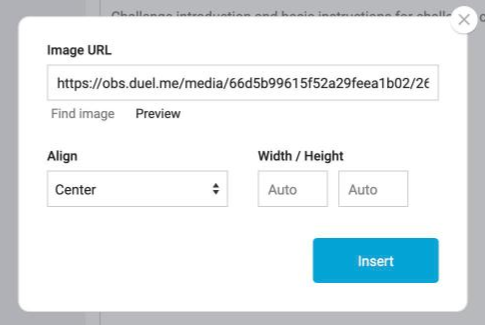
The image is added to your instructions as code, for example [img src="..."]. To see it as advocates will, save the challenge and click Preview at the top of the page. Preview is available once the challenge has been saved.
