![duel_logotype-1.png]](https://info.duel.tech/hs-fs/hubfs/duel_logotype-1.png?height=37&name=duel_logotype-1.png)
You can embed videos directly into the Challenge Instructions or other copy areas within the challenge creation page.
Upload Your Video
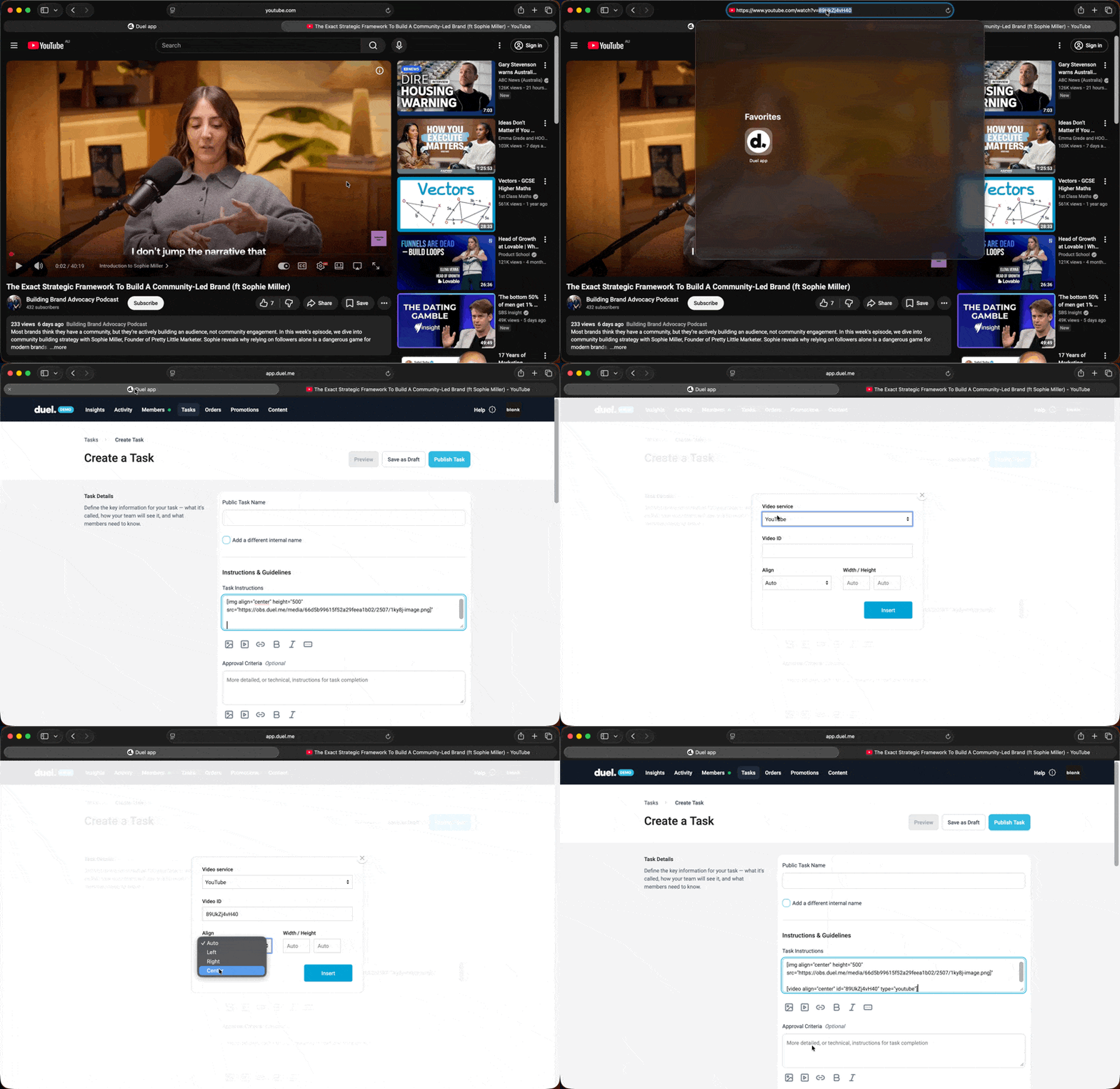
Videos must first be uploaded to YouTube or Vimeo. Once uploaded, copy the video URL or locate the video ID in the browser address bar.
Note you need to include only the video ID not the full URL see gif for example
If required, you can set the video to Unlisted so it is not publicly searchable while still accessible via direct link.
Insert the Video
Click the Insert Video icon in the formatting toolbar. Paste the video URL or video ID into the field provided, then confirm to insert it into your content.
Preview the Video
After inserting, the video may initially appear as embedded code within your challenge copy. To see how it will display to advocates, click Preview to view the challenge with the video rendered correctly