![duel_logotype-1.png]](https://info.duel.tech/hs-fs/hubfs/duel_logotype-1.png?height=37&name=duel_logotype-1.png)
⚠️ Before you begin this integration be sure to let us know so we can enable the Hubspot CRM integration on your Duel account
ℹ️ Hubspot Help Center (external resources)
Step 1: Connect Duel to Hubspot
The operator will need to authenticate/configure within the Hubspot settings area.
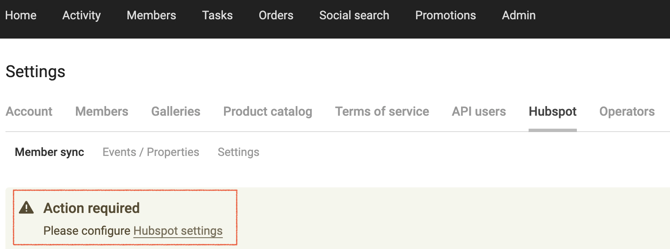
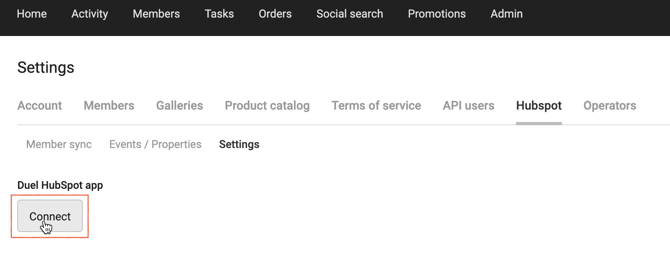
Then connect the Duel Hubspot app:
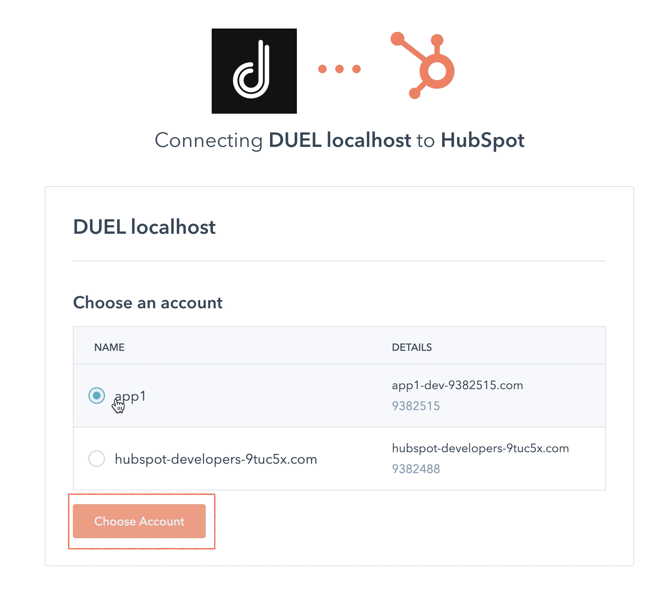
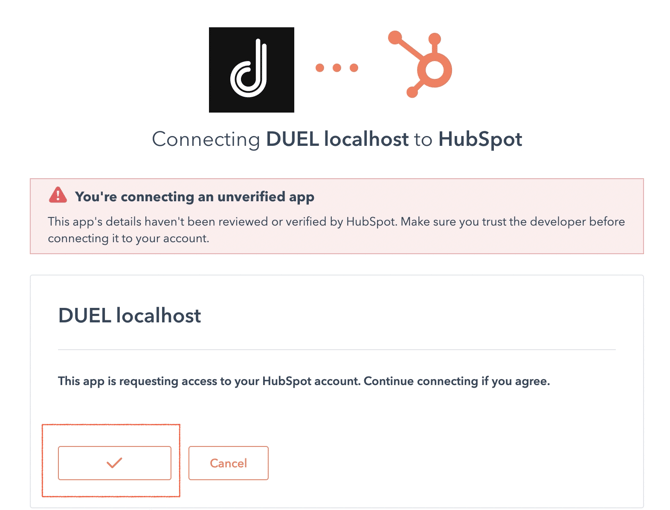
Choose the Hubspot account you want to connect to the Duel app and confirm it.
Step 2: Setting up Duel
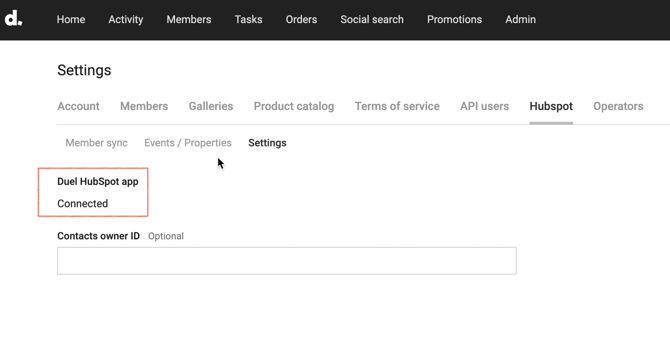
Login to your Duel Dashboard and head to Settings in the top right, and then Hubspot. You will then need to open up the Settings sub-tab. From here, you can see Hubspot has been connected to Duel after following the above mentioned steps.
Step 3: Enable Duel’s Events & Properties
Within the Hubspot section of the Duel app, head to Events/Properties and switch on all elements that you’d like sent over to Hubspot.
We recommend enabling all to start with, so as to capture as much data as possible.
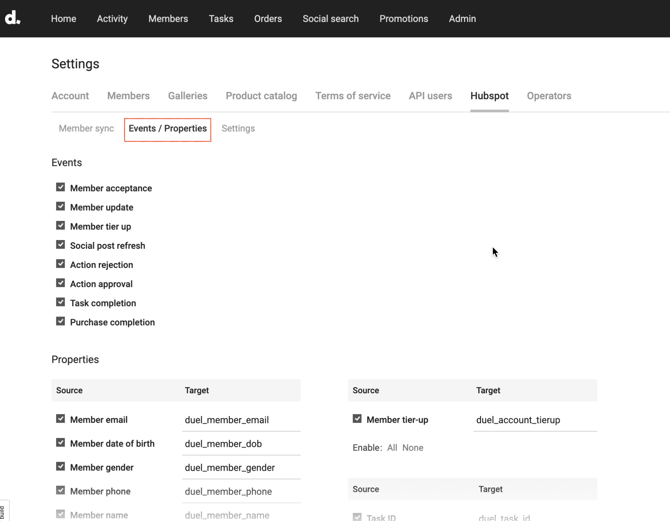
NOTE: You are able to change/edit the Target names for each property source if you would like to.
Step 4: Test Advocate Syncing
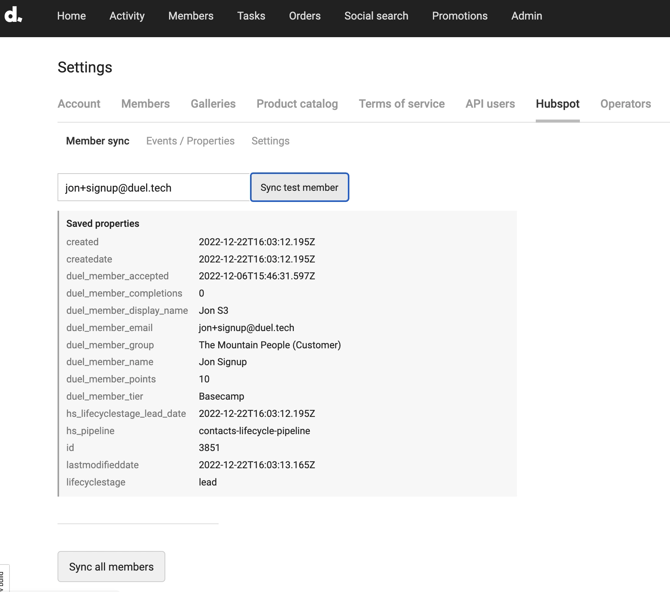
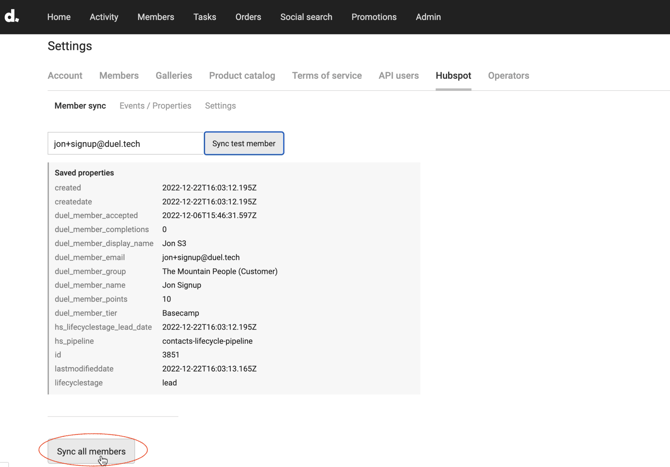
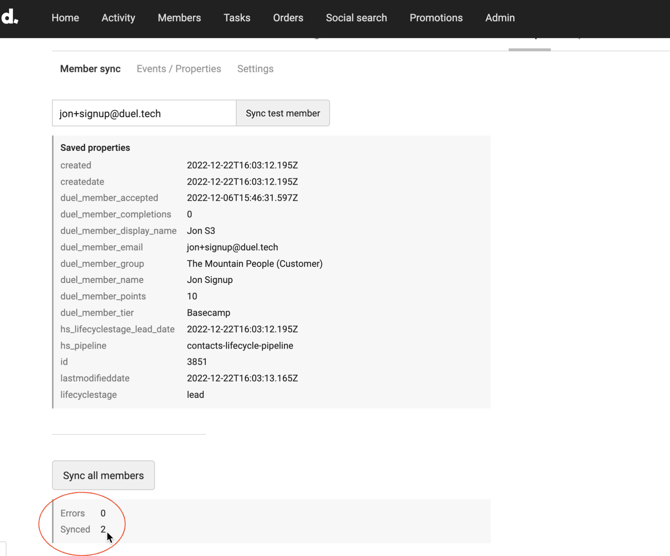
Then we can test the integration by syncing a single advocate from the Duel platform by entering their email address under Hubspot > Advocate sync and then clicking the Sync test advocate button (this needs to be an actual advocate of the programme).
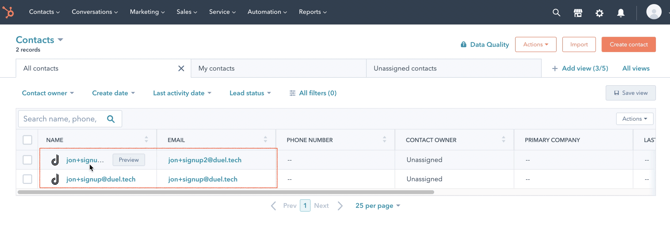
Head back into Hubspot, go to Contacts and search for the email address of your test advocate.
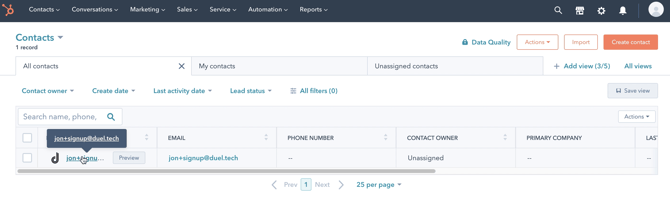
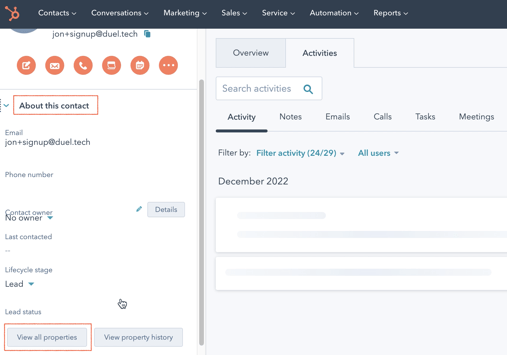
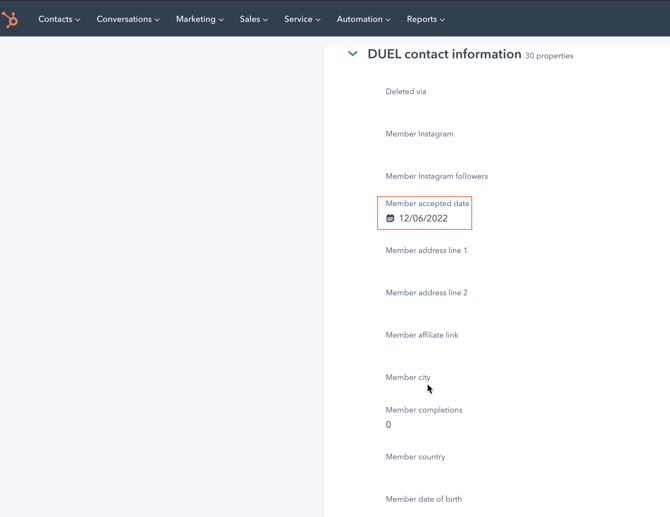
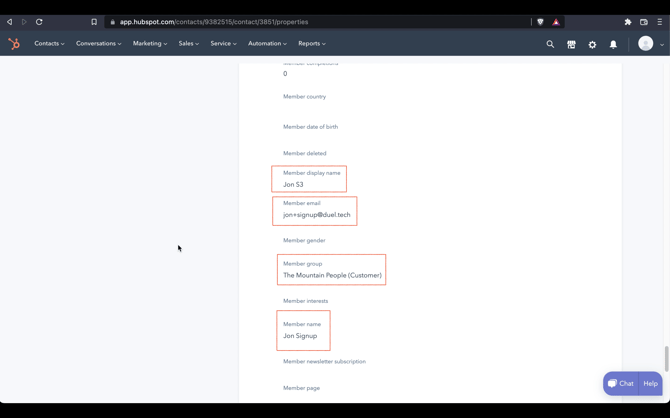
You'll be able to see all of the Duel parameters details on the test Advocate by clicking in their email > About this contact > View all properties and search for DUEL contact information properties of the test Advocate as you scroll down.
Step 5: All Advocates syncing
If the test Advocate & information has synced correctly, you can head back to the Duel app and click Sync all Advocates under Advocate sync.
🕑 Note that this process can take a few minutes to complete.
Once all Advocates have been synced, the total number should appear as below:
If you head back to Hubspot, you'll be able to find all synced contact records under Contacts.
Step 6: Test the integration
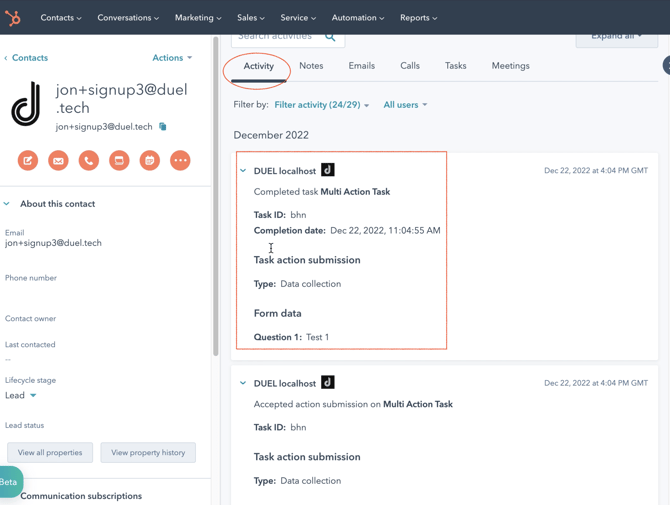
As Advocates signup to the Program and submit challenges through the Duel portal, these will appear in Hubspot.
Select the Advocate you want to look into and you'll be able to see that Advocate's Duel Activity under Activity.
Step 6: All done! You are now integrated with Hubspot
Now it's time to set up some epic flows to help really build that community!