![duel_logotype-1.png]](https://info.duel.tech/hs-fs/hubfs/duel_logotype-1.png?height=37&name=duel_logotype-1.png)
Understanding Notifications
Custom Notification Options
Video Walkthrough
Understanding Notifications
Direct notifications do not trigger a push notification to the advocate's device. The advocate must be logged into their Duel portal to view their notifications.
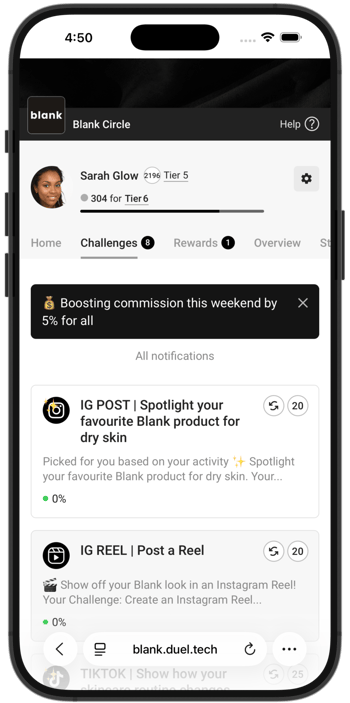 Notifications let you communicate with advocates about perks, errors, specific challenges, and general updates. They appear as a banner in the portal and in the notifications 🔔 section, and are only visible when advocates are logged into the portal.
Set them up in Advocates › Notifications, which has three tabs: System, Custom and Archived.
Types
System
These are default notifications built into the system for events like completing challenges and accepting submissions. We suggest keeping them active, but feel free to customise the wording to align with your brand's voice if needed.
System notifications include:
- Submission accepted and Submission rejected: when an advocate's challenge entry is moderated
- Task completed: when an advocate completes a challenge
- Bonus points: when an advocate receives bonus points
- Referral points: when an advocate earns points from a referral
- Unredeemed promo code: a reminder about an older code the advocate hasn't used
You may see others too, depending on the features on your programme. Each one shows whether it's Enabled or Disabled.
Custom
Functioning similarly to the system notifications, custom notifications offer the added feature of scheduling and targeting specific groups, tiers, or labels of advocates, along with the inclusion of a call-to-action (CTA) if required.
Direct
There are also direct notifications can be sent from the advocate profile tab. This type of notification is a one-time message that is delivered exclusively to a specific advocate.
Custom Notifications Options
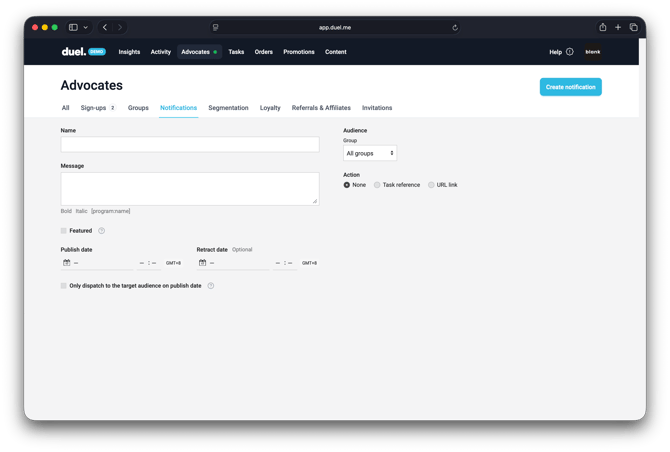
Name - Internal use, not visible to advocates.
Message - What the advocate reads.
Featured - This checkbox will push the notification to the top of the list as long as the notification is active.
Publish date - Publish and retract dates can be scheduled.
Audience - Specify what groups or labels receive the notification.
Only dispatch to the target audience on the publish date - This checkbox ensure that advocates who enter the audience selection after the publish date won't receive the notification.
For example: If the notification has a target audience of Tier 2 and will publish on the 23rd of Jan at 13:00.
All advocates in Tier 2 will see the notification at time of publication however any who get to Tier 2 after the 23rd of Jan at 13:00 won't see it.
Action - This turns the notification into a CTA, you can either refer to a challenge ID or any URL.
Manage > Copy - Notifications can be copied/duplicated.
When a notification expires (reaches it retract date) it moves to the archived tab, these can be republished if required, copied or deleted.
Video Walkthrough