![duel_logotype-1.png]](https://info.duel.tech/hs-fs/hubfs/duel_logotype-1.png?height=37&name=duel_logotype-1.png)
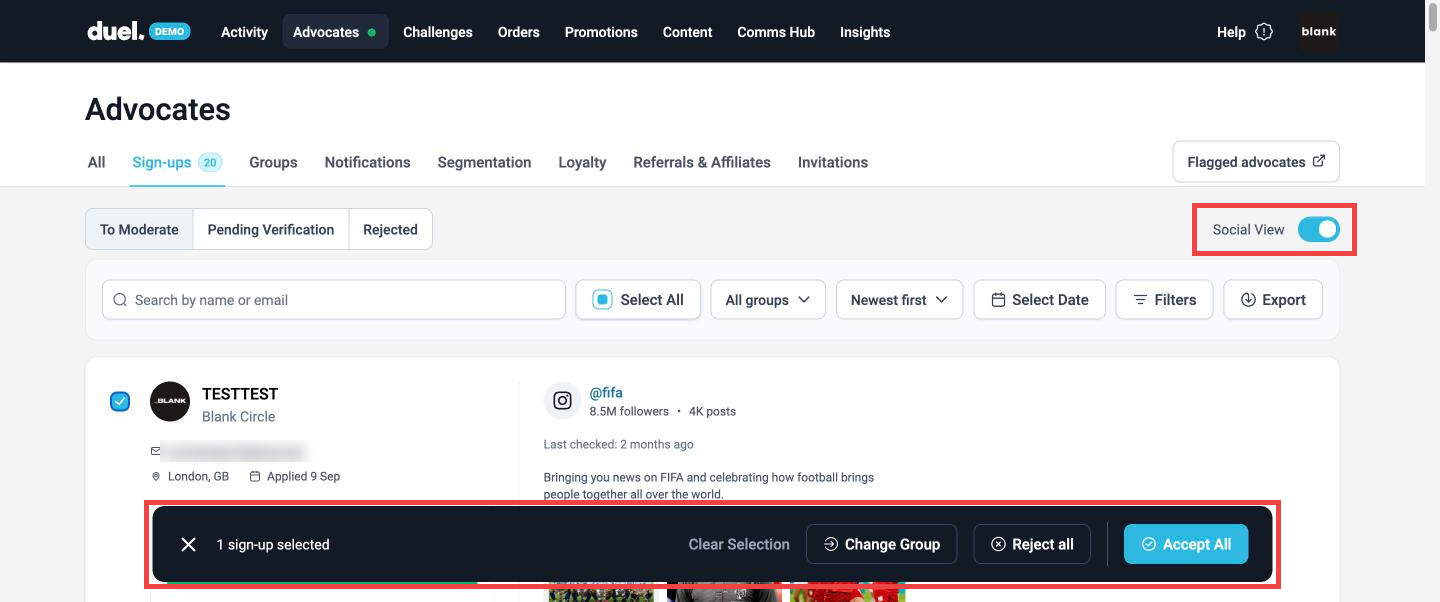
Social View shows each applicant's recent social media posts right on the sign-ups page, so you can judge their tone, content style and engagement without leaving your dashboard or opening new tabs.
Go to Advocates › Sign-ups › To Moderate and turn on the Social View toggle.
Working through sign-ups
- One at a time: click Accept or Reject on the applicant's card.
- Several at once: tick the applicants you want, or click Select All, then use the bar at the bottom: Accept All, Reject all, or Change Group to move them to another group.
- Oldest first: sort by Oldest first to deal with the people who've been waiting longest. Newest first is the default.
- Find someone: search by name or email, or narrow the list by group, date or Filters.
For feedback or questions, contact your Brand Partner (BP).