![duel_logotype-1.png]](https://info.duel.tech/hs-fs/hubfs/duel_logotype-1.png?height=37&name=duel_logotype-1.png)
Overview
Field Reference
How to set up custom Terms of Service
Step 1: Create new Terms of Service
Step 2: Apply the Terms to a group profile
Video Walkthrough
Overview
Custom Terms of Service lets you define the specific terms advocates must agree to before joining your programme and submitting challenges. Terms are always accessible to advocates via the Terms button at the bottom of the portal.
🚨 Custom Terms of Service also includes age gating functionality. See the Age Gating article for more detail.
Field reference
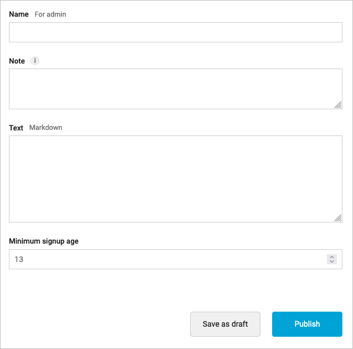
When creating a new Terms of Service entry, you'll fill in the following fields:
- Title: Used for internal reference only. Use versioning (e.g. v1, v2) to track changes over time.
- Note: An optional message shown to existing advocates explaining what has changed and why.
- Text: The terms themselves. You can use markdown to format the content.
- Minimum signup age: Sets the minimum age an advocate must confirm before joining. Leave blank if age gating is not required
How to set up custom Terms of Service
Step 1: Create new Terms of Service
💻 Navigate to Settings (top right) > Terms of Service > Create
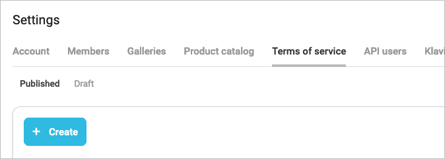
Refer to the definitions provided for each field above. Once you have filled in these details, click on the 'publish' button to finalise the setup.
Step 2: Apply the Terms to a group profile
�� Navigate to Advocates > Group > Group profiles > click into the relevant group profile > General / Text.
Scroll to the bottom of the page and locate the Terms of Service field on the left. Select the terms you just created, then click Save.
If the T&Cs you’ve just created don’t appear, try refreshing the page.

Repeat this step for any other group profiles you want these terms to apply to.