![duel_logotype-1.png]](https://info.duel.tech/hs-fs/hubfs/duel_logotype-1.png?height=37&name=duel_logotype-1.png)
In short: when you reject a challenge submission, you now pick a reason and can add a note. The advocate sees what was wrong and what to fix, with their submission still attached and one click back to resubmit. No more separate messages, and no more advocates left guessing.
🚀 Launched: October 2026 (release notes)
📑 On this page
⚙️ How it works
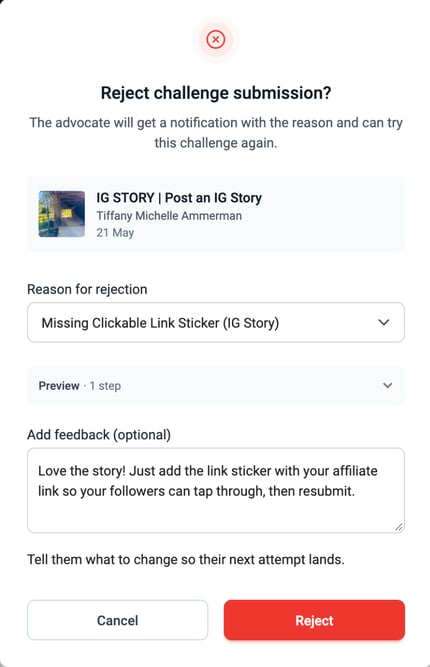
- Reject a challenge submission as usual, one submission at a time (see Challenge Moderation).
- Pick a rejection reason from the dropdown. Every brand starts with a ready-made set of reasons, so there's nothing to set up first.
- Add a note in Add feedback (optional) if you want to say something specific to this advocate. If you pick Other, a note is required.
- Click Reject. The advocate gets the reason, its explanation, the action steps and your note.
The challenge, the advocate and the submission date are filled in for you, so the feedback always points to the right submission.
Open Preview to check the headline, description and action steps the advocate will see:
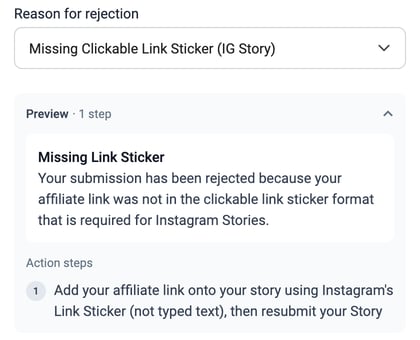
💡 Every manual rejection needs a reason. That's deliberate: advocates always know why a submission was turned down, and your team doesn't get follow-up questions.
📱 What the advocate sees
The feedback appears in the Duel portal in three places:
- their notifications
- a prompt on their home page
- the challenge page itself
On the challenge page they see the reason headline, the explanation, the action steps and your note, with the challenge brief still on screen and their original submission attached. While the challenge is open, one click takes them back to fix it and resubmit.
⚠️ Feedback is shown in the portal only. There's no email in this release, so an advocate who doesn't open the portal won't know their submission was rejected.
✍️ Customising your rejection reasons
You don't have to change anything: the default reasons are ready to use. But tailoring them to your programme's tone of voice makes the feedback feel like it comes from your brand.
💻 Click your brand logo in the top right of your Duel dashboard, select Settings, then open the Challenges tab. You'll see every reason your moderators can pick, which groups it applies to, and which ones are defaults.
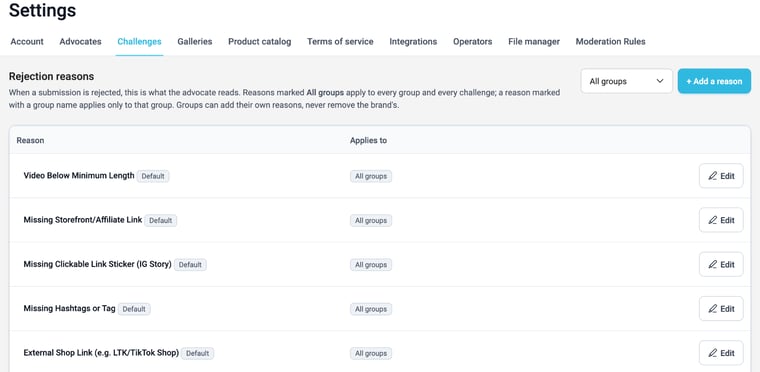
Each reason has three parts
| Field | Who sees it | What to write |
|---|---|---|
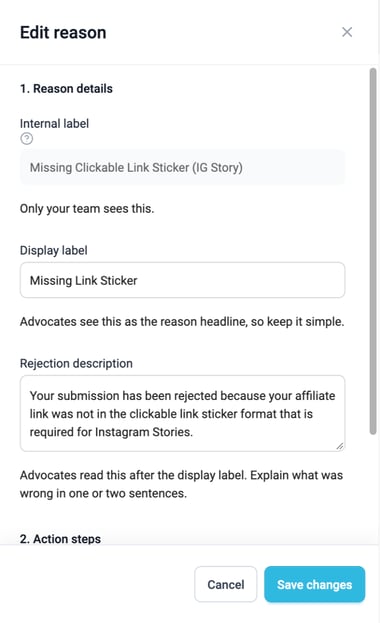
| Internal label | Your team only | A name your moderators will recognise in the dropdown. It must be unique within your brand. |
| Display label | The advocate | The reason headline. Keep it short and simple. |
| Rejection description | The advocate | One or two sentences on what was wrong. |
| Action steps (optional) | The advocate | An ordered list of what to do before resubmitting. This is what turns a rejection into a fix. |
Edit a default reason
- Click Edit next to the reason.
- Change the Display label, Rejection description and Action steps. The internal label of a default reason can't be renamed.
- Click Save changes.
Add your own reason
- Click + Add a reason.
- Give it an internal label, then write the display label, description and action steps.
- Choose whether it applies to all groups or to one group, and save. It appears in the moderation dropdown straight away.
💡 Write reasons advocates can act on. Name the specific thing that was wrong in the description, for example "Your story is missing the clickable link sticker", and put the fix in the action steps: "Add the link sticker with your affiliate link, then resubmit."
Things to bear in mind
- Defaults can be tailored, not removed. You can change what the advocate reads, but you can't rename a default's internal label or delete it.
- Brand and group scope. A reason marked All groups applies to every group and every challenge. A reason marked with a group name applies to that group only. Groups can add their own reasons, but never remove the brand's. Use the group filter at the top right to see one group's list.
- Other is always available. It can't be renamed or removed, and it needs a note from the moderator, so the advocate still gets something specific.
- Access: you need brand or group operator access to manage reasons. If you can't see the Challenges tab in Settings, ask whoever manages your Duel account or your Brand Partner.
See the default reasons
Every brand starts with these, ready to use:
- Video Below Minimum Length
- Missing Storefront/Affiliate Link
- Missing Clickable Link Sticker (IG Story)
- Missing Hashtags or Tag
- External Shop Link (e.g. LTK/TikTok Shop)
- Duplicate Content (Previously Submitted)
- Content Removed after Submission
- Other Brand(s) mentioned or tagged
- Unlicensed Music
- Minimum Follower Requirement Not Met
- Insufficient Content or Caption
- Account not linked to Profile
- Account Set to Private
- Incorrect Screenshot for Challenge
- AI used in Challenge
- Static Image (Video Required)
- Safety Guidelines Not Met
- Other
📌 Good to know
- Manual rejections only. Feedback is sent when an operator rejects one submission at a time. Bulk and automated rejections carry no reason, so they send no feedback.
- No email yet. Feedback appears in the portal only.
- Advocates keep the wording they were sent. If you edit or delete a reason later, feedback that's already been sent doesn't change.
- No reporting view yet. There's no report on which reasons are used most, but the data is kept.
❓ FAQs
Do I need to set anything up before using it?
No. A full set of default reasons is ready from day one. Customising them is optional.
Can I reject a submission without giving a reason?
Not when you reject a submission on its own: every manual rejection asks for a reason, so the advocate always knows why. If none of the reasons fit, choose Other and write a note.
Will advocates get an email when their submission is rejected?
No. In this release, feedback is shown in the portal only: in notifications, on the home page and on the challenge page.
Can the advocate resubmit?
Yes, while the challenge is still open. The feedback links straight back to their submission so they can fix it and send it again.
An advocate is asking why their submission was rejected. What should we tell them?
Point them to the challenge in their portal, where the reason and your note are shown. For more on handling advocate questions, see Answering advocate questions.