![duel_logotype-1.png]](https://info.duel.tech/hs-fs/hubfs/duel_logotype-1.png?height=37&name=duel_logotype-1.png)
Challenge Moderation
Rejecting a Submission
Fixing Products in UGC
Auto Moderation
AI Challenge Evaluation
Manual challenge moderation lets you check the quality and compliance of advocate submissions before any rewards are issued.
Challenge Moderation
By default, challenge submissions need to be moderated before rewards are issued. You moderate them in the Activity tab.
Navigate to Activity > Pending. Activity has four tabs: Pending, Accepted, Hidden and Rejected.
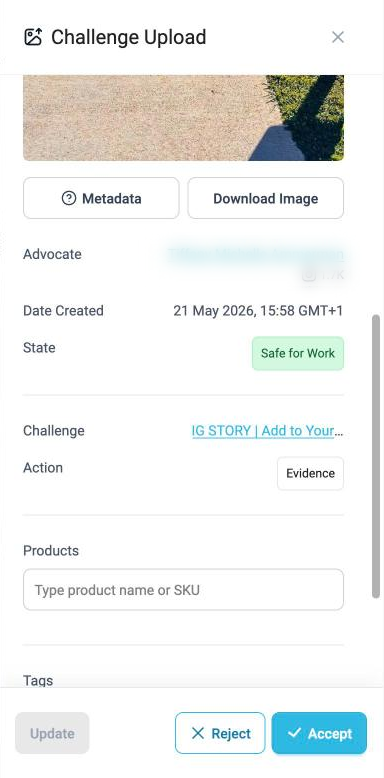
Open a submission to review it in the side panel. From there you can:
✅ Accept: approve the submission and issue the reward
❌ Reject: decline the submission (see below)
⚫ Hide from Galleries: if the step collected an asset (such as an Image Upload or a Social Post), tick this to keep the content out of your galleries. See Content: Assets.
The panel also shows the submission's details, metadata, products and tags, and lets you download the content. If you make changes, such as fixing product tags, click Update to save them.
Rejecting a Submission
When you reject a submission, you choose a reason and can add a note. The advocate sees the reason in the portal, with a button to resubmit while the challenge is still open. No email is sent. You can add your own reasons in Settings > Challenges, alongside Duel's defaults. See Challenge Rejection Feedback.
Fixing Products in UGC
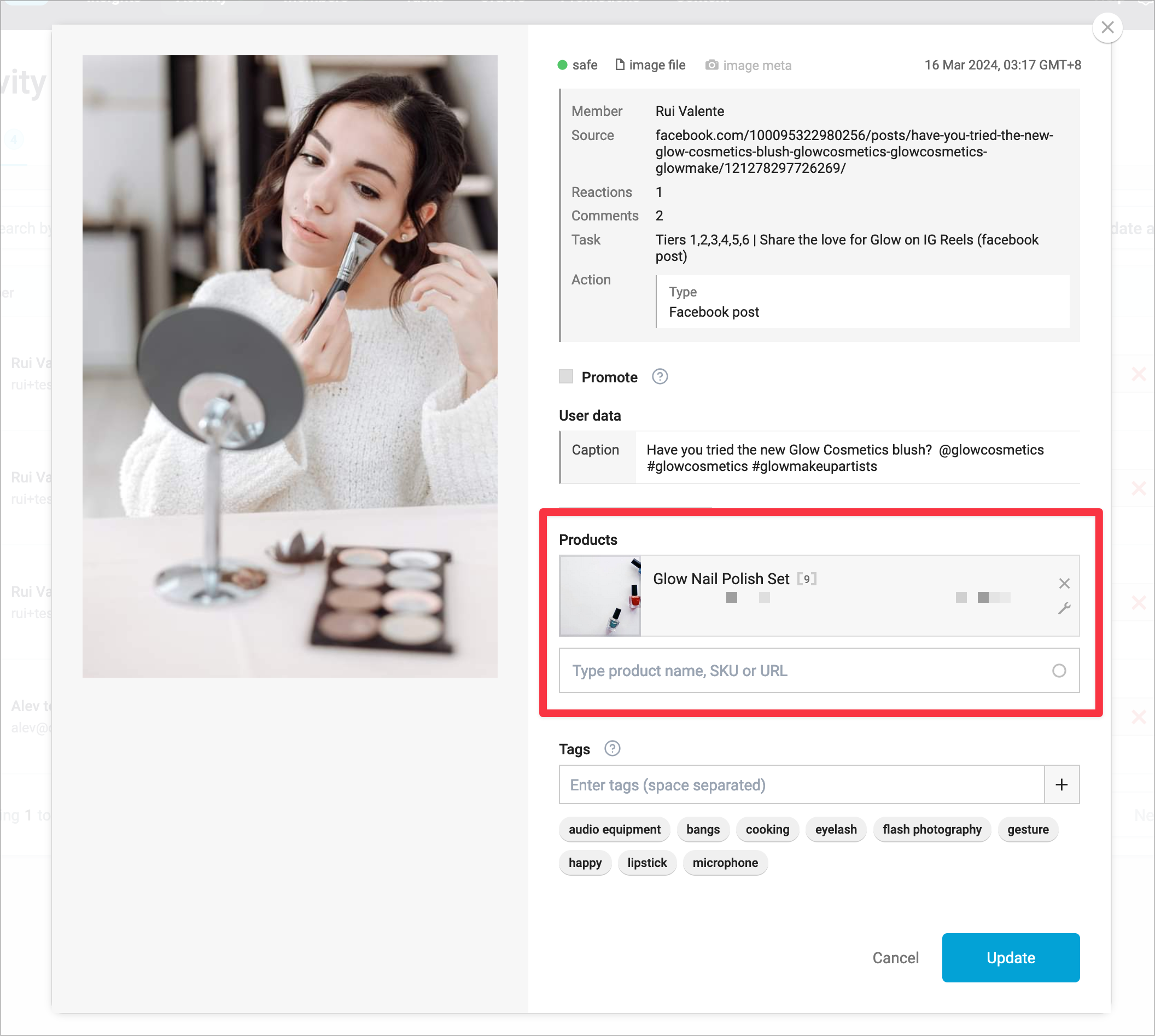
If enabled, advocates can tag products in the content they submit. When reviewing a submission, you can add or correct tags in its Products section, then click Update.
Auto Moderation
Individual action steps can be set to auto moderate. Submissions to those steps are marked as completed and rewarded without anyone reviewing them.
This saves time, but it carries a risk of abuse by advocates, so use it carefully.
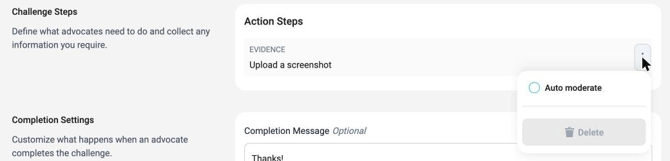
How to set up an auto moderated step
In Create a Challenge > Challenge Steps, open the three-dot menu on the action step and tick Auto moderate. Save your changes to apply it.
You can also set this when importing challenges by CSV (the Auto-Accept column, true or false). The Challenges list shows which challenges are auto moderated.
See more on the challenge creation page.
AI Challenge Evaluation
Separately from auto moderating a step, AI can evaluate whole challenge entries. Set it up in Settings > Account > Challenge Evaluation:
- Smart Accept and Smart Reject thresholds decide which entries are accepted or rejected automatically.
- Entries that fall in between stay in Activity for manual review, with a Score and the AI's explanation.
If your programme uses Moderation Intelligence, these settings are in Settings > Moderation Rules > Activity, and Activity shows a Challenge Score (Safety, Quality and Alignment) with a recommended decision.