![duel_logotype-1.png]](https://info.duel.tech/hs-fs/hubfs/duel_logotype-1.png?height=37&name=duel_logotype-1.png)
In short: Moderation Intelligence reviews every advocate application for you. It applies your sign-up rules, scores the applicant's public social content for brand safety, content quality and brand fit, then accepts, rejects or sends them to manual review based on thresholds you set.
🚀 Launched: September 2026 (release notes)
🔓 Who has it: Moderation Intelligence is switched on for your programme by your Brand Partner. It moderates advocate sign-ups only; challenge submissions are moderated as before. If you don't see Moderation Rules in your Settings, your programme uses Smart Moderation. Ask your Brand Partner if you'd like to move to Moderation Intelligence.
📑 On this page
⚙️ How it works
📧 Coming soon: applicants verify their email first. From late October, moderation will start once an applicant has verified their email address. Until then, they'll wait in Advocates › Sign-ups › Pending Verification, so you may see a few more applicants there and a few fewer in Rejected. Applicants who haven't verified get up to 2 reminder emails.
Every application goes through the same stages, in this order:
- Your rules: the sign-up rules you've switched on (for example country, followers or banned hashtags) are checked first. They apply in every mode.
- Brand Safety: is the applicant's content safe for your brand?
- Content Quality: the technical quality of their content, such as brightness, sharpness and contrast. It doesn't judge whether the content is relevant to you.
- Brand Fit: how well their content matches the Brand Values and Brand Verticals you describe.
Each score runs from 0 to 100. Your thresholds decide what happens at each score: Auto Reject, Manual Review or Auto Accept (passes to the next stage). An applicant stops at the first stage that rejects them, so later scores show as a dash (–). That means "not reached", not "switched off".
Applicants whose content can't be scored, for example because there isn't enough of it, go to manual review. Scores are never shown to applicants. Applicants who are rejected automatically receive your standard rejection email.
🧭 Where to find it
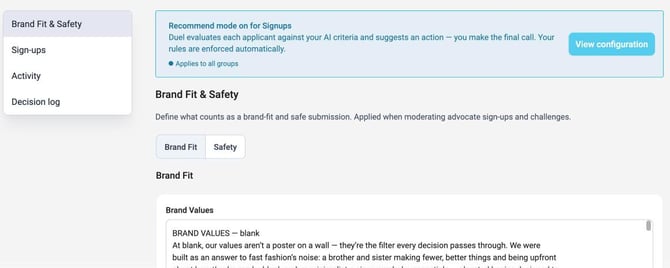
Click your brand logo in the top right, select Settings, then open Moderation Rules. The menu on the left has four sections:
- Brand Fit & Safety: how your brand is described, your safety rules and your scoring thresholds.
- Sign-ups: sign-up rules for each group, the moderation mode, and your performance stats.
- Activity: settings for challenge submissions. Moderation Intelligence doesn't moderate challenges yet.
- Decision log: a record of every sign-up decision and why it was made.
When Recommend mode is on, a Recommend mode on for Signups banner shows at the top, with View configuration to see which groups it applies to.
1️⃣ Step 1: Describe your brand
Go to Brand Fit & Safety › Brand Fit.
- Brand Values: describe your brand, your values and tone of voice, and the kind of advocate and content you're looking for. Brand Fit scores each applicant's content against this text.
- Brand Verticals: select the verticals that best represent your community and products (Fashion, Beauty, Lifestyle, Wellness, Home Goods).
💡 Keep your Brand Values clear and concise. Very specific detail, such as exact dress codes, tends to make Brand Fit scores less accurate. You can edit your Brand Values at any time.
2️⃣ Step 2: Set your safety rules
Go to Brand Fit & Safety › Safety. These rules reject an applicant automatically when their bio or content matches:
- Banned Domains: links to specific websites.
- Banned Hashtags: enter tags without the # symbol.
- Banned Handles & Mentions: enter handles without the @ symbol.
- Profanity Detection: profanity or harmful language. Add Allowlisted terms for words that are fine for your brand. The Decision log shows which word triggered a rejection.
3️⃣ Step 3: Set your scoring thresholds
Under Advanced › Scoring thresholds, click Expand. You'll find the Brand Fit Threshold and Content Quality Threshold on the Brand Fit tab, and the Brand Safety Threshold on the Safety tab.
Switch each threshold on, then drag the two handles (or type the numbers) to set three zones:
- Auto Reject: applicants are filtered out automatically.
- Manual Review: applicants are queued for your team to review.
- Auto Accept: applicants clear this stage and pass to the next one.
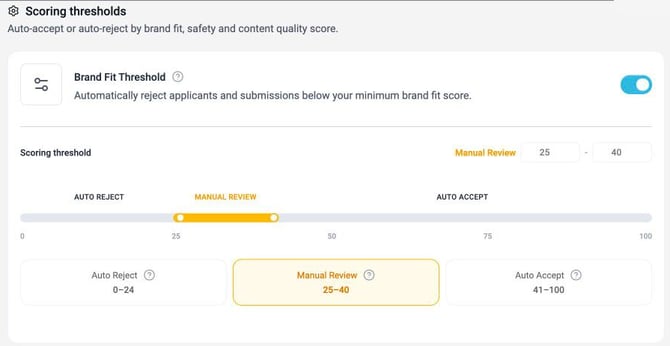
💡 There's no "right" threshold: scores vary a lot from one audience to another. Set your thresholds once you've seen how your own applicants score (see Step 5). Changes apply to new applications straight away.
4️⃣ Step 4: Set your sign-up rules
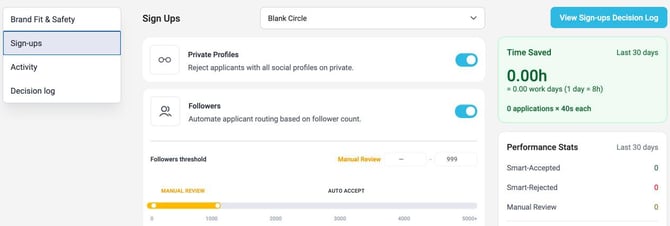
Go to Sign-ups and choose a group from the dropdown at the top. Rules set for a specific group apply to that group only. Switch on the rules you need:
- Private Profiles: reject applicants whose social profiles are all private.
- Followers: route applicants by follower count, with Auto Reject, Manual Review and Auto Accept bands.
- Country: reject applicants outside your Allowed Countries.
- Posting frequency: reject applicants who haven't posted a minimum number of times over a set period (30 days, 3 months, 6 months, 1 year or All time).
- Custom Fields: reject applicants based on their answers to your sign-up form questions.
Click Save when you're done.
5️⃣ Step 5: Choose a moderation mode
On the Sign-ups tab, under Advanced › Sign-ups auto moderation, click Expand and pick an Auto moderation mode:
- On: AI evaluation acts automatically, alongside your rules.
- Recommend: AI evaluation is recorded as a recommendation for you to action. Your rules still apply automatically.
- Off: AI evaluation is skipped, along with profanity detection, which runs as part of it. Your other rules still apply, but the Followers Manual Review band needs AI evaluation and is skipped too.
Click Configure to set a different mode for each group, then Save changes.
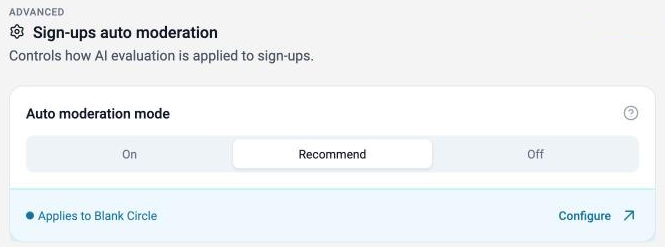
✅ Recommended way to start: use Recommend mode first. Watch the scores and recommendations in the Decision log for at least a week, adjust your thresholds, then switch the mode to On. It's worth going back to Recommend for a while after any big threshold change.
👀 Reviewing applicants
Applicants in the Manual Review zone, and every applicant in Recommend mode, wait in Advocates › Sign-ups › To Moderate. Each one shows an Advocate Score (Safety, Quality and Fit), and you can sort the list by any of the three scores. Click Accept or Reject as usual (see Application Moderation).
If an applicant shows Moderation failed ("Scores couldn't be generated"), you can still accept or reject them manually.
To reverse a rejection, open the Rejected tab.
📋 Decision log, stats and Version History
Decision log
Go to Moderation Rules › Decision log, or click View Sign-ups Decision Log on the Sign-ups tab. Every sign-up decision is listed with the applicant's scores, the decision, whether it was automated or manual, the reason, the recommended decision (in Recommend mode) and who made it. Click a row for the full detail.
You can search by applicant name or email, filter the list and Export it as a CSV. Every operator on your account can view and export the Decision log.
Performance stats
The Sign-ups tab shows Time Saved and Performance Stats for the last 30 days: how many applicants were Smart-Accepted, Smart-Rejected or sent to Manual Review, and the share of applications moderated automatically.
Version History
Every change to your rules and thresholds is recorded in Version History, at the bottom of the Brand Fit & Safety, Sign-ups and Activity tabs, with the date, what changed and who changed it. To go back to an earlier setup, restore that version and click Save.
❓ FAQs
Does Moderation Intelligence moderate challenge submissions?
Not yet. It moderates advocate sign-ups only. Challenge submissions are moderated as before (see Challenge Moderation).
Can applicants see their scores?
No. Scores are only shown to your team. Applicants who are rejected automatically receive your standard rejection email.
What does Moderation Intelligence look at?
Only the public content an applicant has already posted on their linked social profiles: images, video (including speech) and captions. It doesn't use your CRM or any private advocate data, and applicant content isn't used to train AI models.
Why is an applicant in Pending Verification with no score?
Once the change coming in late October is live, applicants are only moderated after they verify their email address. Until then they stay in Advocates › Sign-ups › Pending Verification with no score, and get up to 2 reminder emails.
Why does an applicant show a dash instead of a score?
The stages run in order (Brand Safety, then Content Quality, then Brand Fit), and an applicant stops at the first stage that rejects them. A dash means that stage wasn't reached.
An applicant was rejected but looks fine. What should I do?
Open the applicant in the Decision log to see which rule or score caused the rejection. Brand Safety can flag content that's harmless for your brand, such as swimwear or a glass of wine. You can accept the applicant manually, and adjust your thresholds, rules or Brand Values if it keeps happening. Your Brand Partner can help.
Do changes apply to applicants who have already been moderated?
No. Changes to rules and thresholds apply to new applications from the moment you save.
I don't see Moderation Rules in my Settings
Your programme uses Smart Moderation, set up in Settings › Account › Advocate Evaluation (see Smart Moderation). Your Brand Partner can tell you about moving to Moderation Intelligence.