![duel_logotype-1.png]](https://info.duel.tech/hs-fs/hubfs/duel_logotype-1.png?height=37&name=duel_logotype-1.png)
For additional context and details, please refer to the release notes.
Set Up Your AI Scoring Prompt
Review Scores & Refine Prompt
Enable Smart Moderation Thresholds
Review Decisions in the Decision Log
Best Practices
Prompt Writing Tips
Set Up Your AI Scoring Prompt
- Log in to your Duel dashboard.
- Navigate to Settings in the top right.
- Under Account, select Advocate Evaluation. You start on the Moderation Controls tab.
- In the Smart Moderation section, enter your Brand Values prompt. To change it later, click New Moderation Prompt: earlier versions are saved, and the Decision Log shows which version made each decision.
- Click Save to confirm.
If you don’t yet have a prompt or need help refining it, reach out to your Brand Partner for examples and best practices. See some tips below.

Review Scores & Refine Prompt
Once your prompt is active, applicants are scored as they sign up.
- Go to Settings > Account > Advocate Evaluation > Decision Log.
- The AI Score column shows each applicant’s rating, alongside the decision, its source and the reason. Ratings are:
- Excellent, Very Good, Good, Average, or Poor.
We recommend letting the prompt run for a period to build a solid data sample:
-
Suggested minimum: 1 month or ~1,000 applications
Use this time to assess how well the scores reflect your brand’s evaluation criteria. If the scores feel inaccurate or misaligned:
- Edit your prompt to better reflect your expectations.
- Turn on the Manual Profile Re-evaluation toggle (Settings > Account > Advocate Evaluation) so pending applicants are re-evaluated when you change the prompt. To re-evaluate one applicant, click Evaluate on their card in Advocates > Sign-ups > To Moderate.

Enable Smart Moderation Thresholds
Once you’re confident in your prompt and scoring results, you can enable Smart Moderation thresholds to automate decisions.
📧 Applicants verify their email first. Moderation starts once an applicant has verified their email address. Until then, they wait in Advocates › Sign-ups › Pending Verification and get up to 2 reminder emails, so you may see more applicants there and fewer in Rejected.
-
Go to Settings → Account → Advocate Evaluation → Moderation Controls
-
Scroll to Thresholds
-
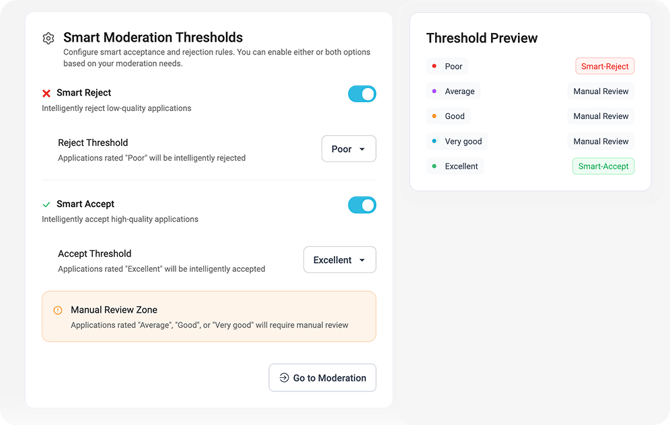
Toggle on either or both:
-
Smart Accept – Automatically accepts applications at or above your chosen threshold.
-
Smart Reject – Automatically rejects applications below your chosen threshold.
-
Applications that fall between your accept and reject thresholds stay in the manual review zone, in Advocates > Sign-ups > To Moderate. Below the thresholds you’ll find Time Saved (last 30 days), Performance Stats and a Threshold Preview, to see the effect of your thresholds.
Challenge entries have their own Smart Accept and Smart Reject thresholds, in Settings > Account > Challenge Evaluation. See Challenge Moderation.
Review Decisions in the Decision Log
- View every accept or reject decision made by the AI or operators.
- See scores and prompt versions used at the time of decision.
- Reverse decisions if needed, you maintain full control.
If your programme uses Moderation Intelligence, AI moderation is set up in Settings > Moderation Rules > Brand Fit & Safety instead, starting in Recommend mode, and applicants get an Advocate Score.
Best Practices
- Test thoroughly: Allow enough time to validate your prompt before automating decisions.
- Refine regularly: Monitor scoring patterns and adjust your prompt over time.
- Stay in control: Use the Decision Log to audit decisions and make manual updates when needed.
Prompt Writing Tips
A well‑written prompt helps the AI understand what matters most to your brand. Consider these tips when drafting your prompt:
- Reflect your brand values. Include keywords or themes that capture your mission, tone and ideal community (e.g. sustainability, wellness, authenticity).
- Be clear and specific. Tell the AI what qualities or behaviours you want to see in advocates (for example, “positive engagement” or “supportive of our product category”).
- Keep it concise. Shorter prompts tend to be more focused; avoid overly long sentences that mix unrelated criteria.
- Focus on behaviours, not personal traits. The AI evaluates content tone, engagement quality and credibility, not sensitive personal data.
Your Brand Partner can help you craft and improve your prompt to fit your programme goals.