![duel_logotype-1.png]](https://info.duel.tech/hs-fs/hubfs/duel_logotype-1.png?height=37&name=duel_logotype-1.png)
In short: the Communications Hub lets you build, send and measure email campaigns to your advocates without leaving Duel. Design emails with drag and drop, show every advocate their own points and tier progress, target the right people with your programme data, and send from your own domain.
🚀 Launched: September 2026 (release notes)
📑 On this page
💻 In your Duel dashboard, click Comms Hub in the top menu. The left-hand menu has Campaigns (with Templates underneath), Audience and Settings.

🗓️ Switched on programme by programme. The Communications Hub is included with Duel. If you don't see Comms Hub in your menu, ask your Brand Partner to switch it on and help you set it up.
🧭 Comms Hub or Automated Flows?
Both send emails to your advocates, but they do different jobs. Ask yourself one question: am I choosing a date, or a behaviour?
| Comms Hub | Automated Flows | |
|---|---|---|
| What it is | Campaigns you build and send | Emails that send themselves when something happens |
| What sets it off | A date and time you choose | A behaviour: signs up, tiers up, goes inactive |
| Who gets it | An audience you choose from your programme data | Whichever advocate triggers the email |
| Typical use | Digest, newsletter, announcement, event invite, win-back | Welcome, email verification, tier up, inactivity, application outcome |
| Where it lives | Comms Hub in the top menu | Advocates › Groups › Group profiles › Automated Flows |
| In one line | "Send this, to these people, on Tuesday" | "Whenever this happens, send that" |
💡 What about the digest? The old digest was one HTML email sent to every advocate on a fixed schedule. In the Comms Hub, a digest is just another campaign: you design it with drag and drop, choose who gets it, and see how it performed.
🗺️ Your first campaign at a glance
| Step | Where | How often |
|---|---|---|
| 1. Set up your account: styling and sender identity | Settings | Once |
| 2. Authenticate your domain: three DNS records | Settings | Once |
| 3. Get your audience ready | Audience | Once, then reuse |
| 4. Design a template | Campaigns › Templates | Once per email design |
| 5. Build and send a campaign | Campaigns | Every send, in minutes |
| 6. Track your results | Campaigns | After every send |
⚙️ 1. Set up your account
Nothing can send until your account is set up, so start in Comms Hub › Settings. The first time you open it, click Setup. Duel creates your email account in about a minute.
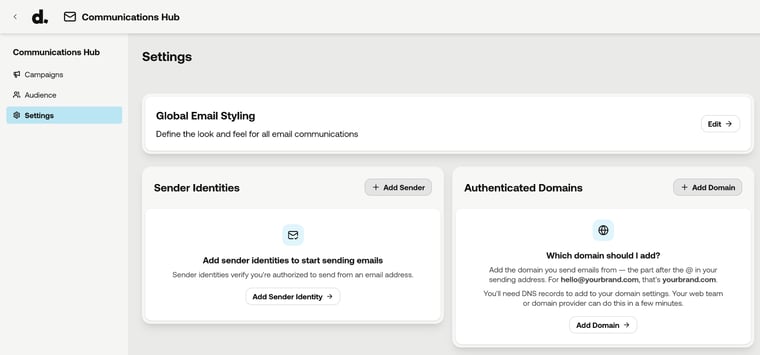
Global Email Styling
This sets the look of every email you send. Click Edit, then work through the panels on the left while the preview updates on the right. Switch between Desktop and Mobile to check both.
- Logo (required): appears in every email header.
- Colors: background, text, logo background, header menu, buttons and links.
- Header Menu: choose which links appear at the top of your emails (Shop, Challenges, Rewards) and rename them if you like.
- Footer: add your social links and your Privacy Policy URL (required).
Click Save and exit when you're done.
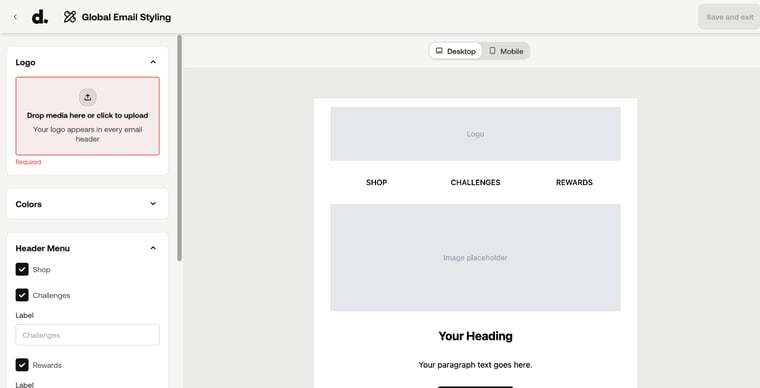
Sender Identities
A sender identity is who your emails come from. Click Add Sender and fill in:
- Sender Label: a name only your team sees, for example "Marketing Team".
- From Email Address and From Name: what advocates see in their inbox.
- Add a reply-to address (optional): without one, advocate replies go to your from address.
- Sender address: a registered business address or PO box. It's required by law for commercial email.
You can create one sender identity per brand, team or region.
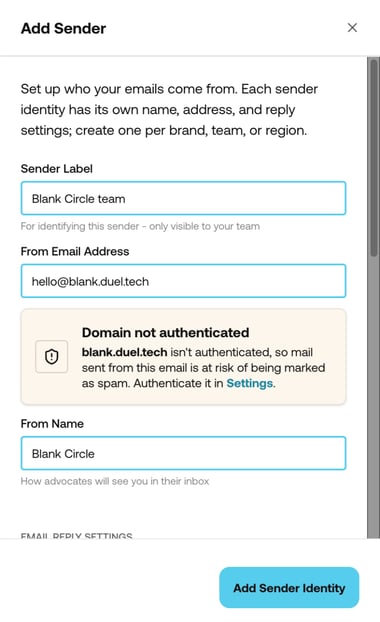
💡 Choose your from address carefully. It can be a no-reply address or an inbox your team manages. If advocates can reply, make sure someone looks after that inbox. If you see Domain not authenticated under the address, complete the next step.
🔐 2. Authenticate your sending domain
Your emails send from your own domain, not from Duel. That builds trust with advocates and helps your emails reach the inbox. It takes three DNS records, which is about 10 minutes of work for the right person.
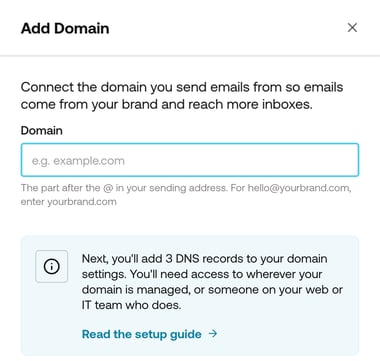
- In Settings, click Add Domain and enter the domain you send from: the part after the @ in your sending address. For hello@yourbrand.com, that's yourbrand.com.
- You'll see a table of three CNAME records, each with a status, type, host and value. They're unique to your brand, so always use the ones on your own screen.
- Send them to whoever manages your website domain. That's usually your web or ecommerce team, a technical lead or the agency that hosts your site, rather than general IT support. If they need to copy the records themselves, they'll need access to your Duel dashboard.
- They add each record exactly as shown at your domain provider (for example GoDaddy, Cloudflare, Namecheap or Squarespace): no quotation marks, no extra spaces, and no dots or underscores removed.
- Come back to Settings and click Verify. You don't have to wait on the page: the status is checked again each time you return.
- Wait for all three records to turn Verified. It can take a few minutes or up to 48 hours.
📋 Copy this message for whoever manages your domain
Subject: Three DNS records to add for our advocate email
Hi, we're switching our advocate programme emails over to send from our own domain. Duel, the platform we run the programme on, has given us three CNAME records to add to our DNS settings.
It should take about 10 minutes. The records need copying exactly as they appear, with no changes to the type or the value, no quotation marks and no extra spaces. Some providers add our domain to the end of the host field automatically, so please check that before saving.
I can send you the three records, or give you access to the platform so you can copy them directly. Once they're in, I'll click Verify at our end. Changes can take up to 48 hours to show as verified.
Are you the right person for this, and when could it be done?
⚠️ Watch the host field. Some domain providers add your domain to the end of the host automatically, so a host like em1234.yourbrand.com should be entered as just em1234. Check your provider's instructions rather than guessing.
👥 3. Get your audience ready
Go to Comms Hub › Audience. The top of the page shows how many Email contacts you have and when they were last synced. Click Sync all advocates to bring your advocates in as contacts.
When you build a campaign, you choose who receives it from two kinds of list:
| List type | What it is | Best for |
|---|---|---|
| Smart Lists | Built from your programme data, such as segments and tiers, so they stay up to date as advocates move | Most campaigns |
| Manual Lists | A CSV you upload | One-off sends, such as event guests. A CSV is a snapshot, so it goes out of date. |
Lists are saved, so you can reuse them. Give each one a name that will still make sense months from now, for example "Tier 3+ UK, active in last 30 days".
💡 Target, don't blast. Because your lists come from your programme data, you can reach exactly the right advocates, for example everyone who reached a new tier last month but hasn't completed a challenge since. Build these groups with segments.
🎨 4. Design your email template
Templates are the designs your campaigns use. Go to Comms Hub › Campaigns › Templates.
- Duel Basic Email is a ready-made starting point. It's locked, so it's always there to start from.
- Click Create Template to design your own, or use Duplicate template to copy an existing one and change it.
In the editor, drag blocks from the left into your email, then click a block to edit it. Your logo, colours, header menu and footer come from your Global Email Styling.
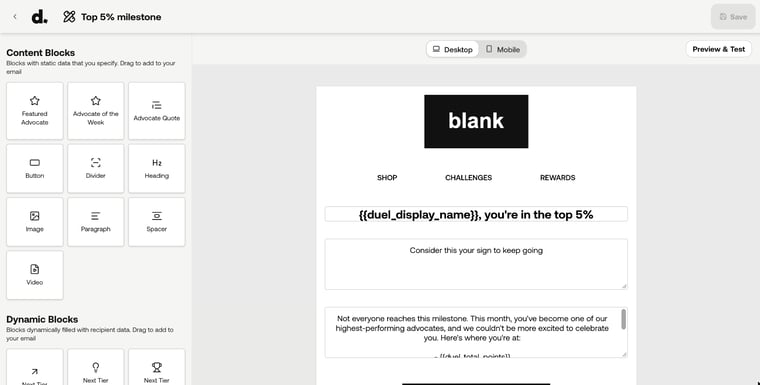
| Content Blocks: you write the content | Dynamic Blocks: filled in for each advocate |
|---|---|
| Heading · Paragraph · Button · Image · Video · Divider · Spacer · Featured Advocate · Advocate of the Week · Advocate Quote | Total Points · Next Tier · Next Tier Reminder · Next Tier Rewards · Next Tier Tasks · Progress Bar |
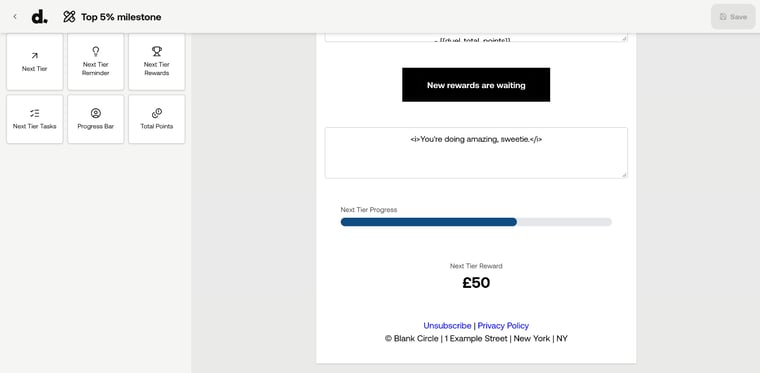
Personalise your text with tags
You can also add advocate details straight into headings, text and subject lines with tags in double curly brackets, for example for the advocate's name or for their points. Each advocate sees their own details when the email arrives.
Click Preview & Test to check your template, and switch between Desktop and Mobile. Click Save when you're happy.
💡 Show advocates how close they are. Advocates who can't see how close their next tier is tend to stop climbing. A Progress Bar or Next Tier Rewards block gives them a reason to come back and complete one more challenge.
✉️ 5. Build and send a campaign
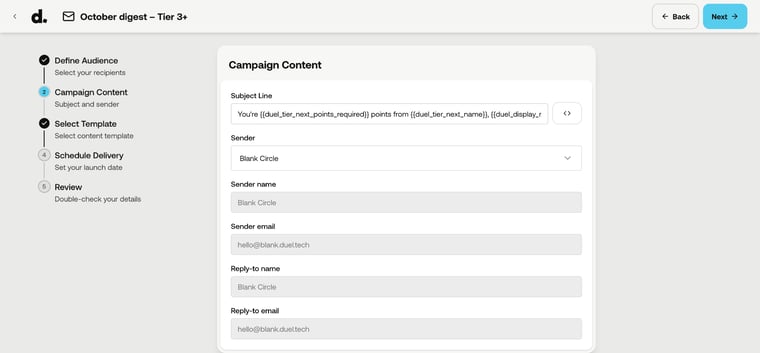
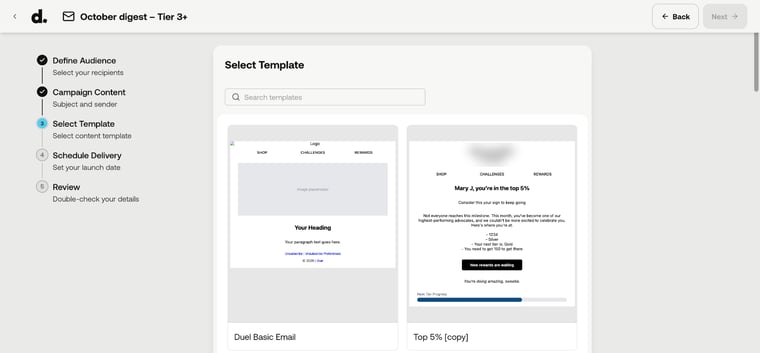
Go to Comms Hub › Campaigns and click Create Campaign. The builder walks you through five steps, shown on the left. Use Next and Back to move between them.
- Define Audience: choose your recipients from Smart Lists or Manual Lists. The estimated number of recipients is shown on the right.
- Campaign Content: write your Subject Line and choose a Sender. The sender name, sender email and reply-to details fill in from your sender identity. Use the <> button to add tags such as the advocate's name to your subject line.
- Select Template: pick the template for this email. Search by name if you have lots.
- Schedule Delivery: choose Schedule and pick a date, time and timezone, or choose Send now.
- Review: double-check everything before it goes.
⚠️ Test before you send. Use Preview & Test on your template to check it on a phone and a desktop, and check every link and tag before you schedule or send. Once a campaign has gone, it can't be called back.
📊 6. Track your results
The Campaigns page lists every campaign with its Status, Type, when it was last updated, and its Open Rate and Click Rate. Filter by Date range or Status, or search by name. Tick campaigns to Clone or Delete them.
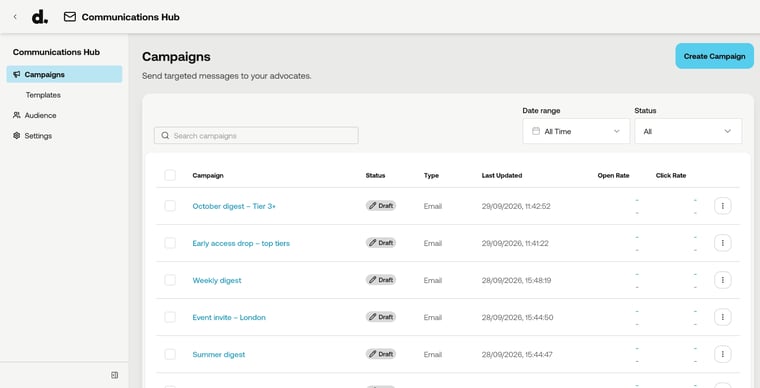
- Watch your click rate. A click is an advocate coming back into your programme, so it's the number that matters most.
- Compare and improve. Try different subject lines, send times and audiences, and keep what works.
- Clone what works. For a regular send like a weekly digest, clone last week's campaign and update it instead of starting again.
💡 Campaign ideas
| Campaign | Who to send it to | Blocks to try |
|---|---|---|
| Weekly or monthly digest | All active advocates | Next Tier Tasks, Progress Bar, Featured Advocate |
| "You're nearly there" | Advocates close to their next tier | Next Tier Reminder, Next Tier Rewards |
| Win-back | Advocates with no activity for a while | Total Points, a Button to new challenges |
| Early access or launch | Your top tiers | Image, Heading, Button |
| Advocate spotlight | Everyone | Advocate of the Week, Advocate Quote |
| Event invite | A Manual List of guests, or a city segment | Image, Paragraph, Button |
🛠️ If a send is blocked
If you see Account setup incomplete, or a campaign won't send, check these first:
- Is your Global Email Styling saved? The logo and Privacy Policy URL are required.
- Do you have a sender identity? Add one under Settings › Sender Identities.
- Has your domain verified? DNS changes can take up to 48 hours.
If a DNS record stays unverified, check that:
- every value was copied exactly, with no added spaces or quotation marks
- your provider didn't add your domain to the host field a second time
- it's been at least 48 hours since the records were saved
Still stuck? Send a screenshot of your provider's DNS page to your Brand Partner, who can bring in Duel's Programme Operations team to check the records from our side.
❓ FAQs
Does it cost extra?
No. The Communications Hub is included with Duel. Your Brand Partner switches it on for your programme.
Can we keep using Klaviyo or another email tool?
Yes. You don't have to switch. Many brands keep their email tool for wider customer marketing and use the Comms Hub for advocate emails, where targeting on programme data matters most. If you use Klaviyo, see the Klaviyo Integration Guide.
Can we schedule campaigns?
Yes. In the Schedule Delivery step, choose a future date, time and timezone, or send straight away. For a regular send like a weekly digest, clone your last campaign and update it.
Can advocates unsubscribe?
Yes. Every email includes an unsubscribe link, and anyone who opts out stays opted out on future sends. Your Brand Partner will run through consent and compliance with you before your first real send.
What data does it use?
Only your own programme data, such as segments, tiers, points and challenges, to target and personalise your campaigns. It isn't shared externally or used to train AI models.
What do we need to provide?
Three things: the DNS records on your domain, your copy (subject lines, headlines, body text and calls to action, in your tone of voice) and your imagery. Your Brand Partner can share a copy document with a Duel draft already written, so you're editing rather than starting from scratch.
Will our emails land in the inbox?
Sending from your own authenticated domain gives you the best chance. A new sending domain builds trust with inbox providers over time, so your Brand Partner will help you increase sending gradually rather than emailing everyone at once on day one.