![duel_logotype-1.png]](https://info.duel.tech/hs-fs/hubfs/duel_logotype-1.png?height=37&name=duel_logotype-1.png)
Video Walkthrough
Creating Custom Fields
Adding Custom Fields to Signup Forms
Using Custom Fields in Challenges
Types of Custom Fields
Accessing Fields from Your CRM
Custom fields let you collect additional information about your advocates beyond Duel's standard profile details — things like favourite sports, clothing sizes, or any other data relevant to your programme.
Video Walkthrough
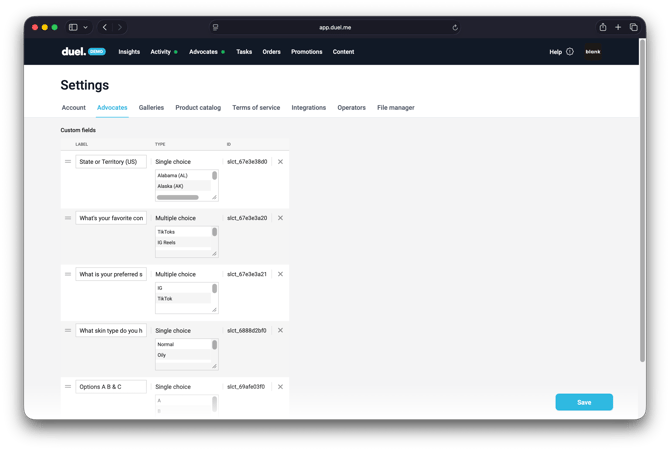
Creating Custom Fields
💻 Navigate to Settings > Advocates
- Select the type of field you want to add (e.g. text, checkbox, multiple-choice).
- Define your question clearly (e.g. "What is your favourite sport?").
- Click Save.
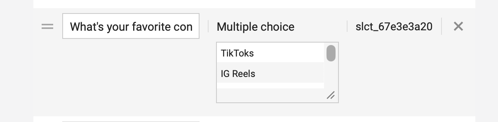
Once saved, each custom field is assigned a unique ID, visible in your dashboard. This ID is used to identify the field when data is exported to your CRM.
💡 Pro Tip: Custom fields are available across all advocate groups — you only need to create them once.
Adding Custom Fields to Signup Forms
Once a custom field has been created, you can add it to any signup form.
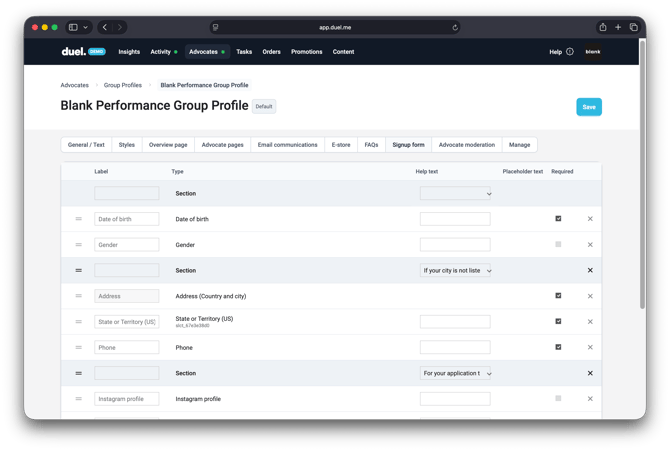
💻 Navigate to Advocates > Groups > Group Profiles > select correct group profile > Signup Form
- Click Add Element.
- Select your custom field from the dropdown menu.
- Drag the field into your preferred position on the form, make it required or not with the checkbox.
- Click Save.
🚨 Note: If a newly created field doesn't appear in the dropdown, refresh your browser and try again.
The field will now appear when advocates sign up. Their responses are stored directly on their profile.
Using Custom Fields in Challenges
Custom fields can also be used to collect data through challenges.
💻 Navigate to Challenges > Create New
- Select Action Steps, then choose Data Collection.
- Select your custom field from the dropdown menu in the form configuration.
- Complete the challenge setup and send it to your advocates.
🚨 Note: If a newly created field doesn't appear in the dropdown, refresh your browser and try again.
Types of Custom Fields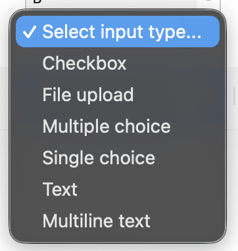
Custom fields support a range of input types, including text, multiline text, multiple-choice, checkboxes, and file uploads.
For a full breakdown of each input type, see the dedicated article:
Accessing Fields from Your CRM
If you've connected your CRM and enabled profile fields in the Events/Properties section, all custom field data is automatically sent to your CRM.
Each custom field's unique ID (visible in Settings > Advocates) is used by your CRM to distinguish between fields on import.