![duel_logotype-1.png]](https://info.duel.tech/hs-fs/hubfs/duel_logotype-1.png?height=37&name=duel_logotype-1.png)
Form elements are the questions you ask advocates in Duel: in a challenge, on your sign-up form or on their profile. Where you add a form decides where the answers are saved and how you export them.
📑 On this page
📋 What form elements are
Each question in a form is a field. These are the field types:
- Text: a single-line answer.
- Multiline text: a longer answer.
- Single choice: the advocate picks one option.
- Multiple choice: the advocate picks one or more options.
- Checkbox: a single box to tick.
- File upload: the advocate uploads a file to the challenge.
- Caption: a caption for a piece of content.
- Star review: a star rating for a piece of content.
- Tags: the advocate adds image tags to their content.
- Testimonial: a written testimonial attached to their content.
- Product tagging: the advocate tags a product from your linked product catalog.
🗂️ Where answers are saved and exported
You can add a form in three places. Each one saves the answers somewhere different:
As its own challenge step (Data collection)
The answers belong to the challenge. Use it for surveys and feedback challenges. To export them, open the challenge and click More > Export form data collection.
Added to another step
Add a form to a step such as Image Upload or Evidence, and the answers are saved on the content the advocate submits, in Content > Assets. Use it to tag content with a product, a testimonial or a star review.
As profile fields
The answers are saved on the advocate's profile. You'll find them on the advocate in Advocates, in the advocate export (see Data Exports) and in data sent to your CRM. Use them on your sign-up form or in profile challenges.
🛠️ Build a form in a challenge
Each field in the form builder is a card. A closed card shows the field number, its label, its options and tags for the type, the number of options and whether it's required. You open one field at a time to edit it.
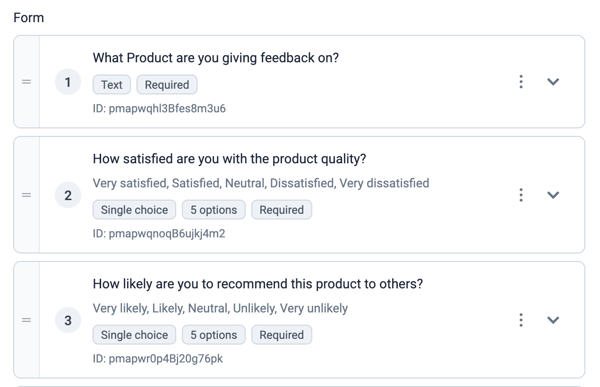
- Go to Challenges and create or edit a challenge. See Challenge Building.
- Under Challenge Steps, add or open a Data collection step. You can also add a form to other steps; see Challenge Action Steps.
- Under Form, click Add field.
- Enter the Field label (the question advocates see), choose the Type and tick Required if advocates must answer.
- For a choice field, add each answer under Options, one per row. Click Add option for another.
- Click Save under the step, then Save Changes.
To manage fields:
- Open or close a field: click the arrow on its card.
- Reorder: drag the handle on the left of a card.
- Delete: click the three dots on the card, then Delete field.
💡 Tip: on an active challenge, some settings are locked, including a field's type. Set up your fields before the challenge goes live.
👤 Standard profile fields
Profile fields collect details about the advocate, such as social profiles, address, date of birth and interests. Duel has a standard field for each of these, such as Date of birth or Gender, which you pick as the field type when you build your sign-up form.
✏️ Custom profile fields
Custom fields let you collect anything else you want to know about your advocates. They're saved on each advocate's profile and can be text, multiple choice, checkboxes, file uploads or multiline text. For a full walkthrough, see Custom Profile Fields.