![duel_logotype-1.png]](https://info.duel.tech/hs-fs/hubfs/duel_logotype-1.png?height=37&name=duel_logotype-1.png)
Every challenge requires at least one action step — but you can add multiple to the same challenge if needed. You add steps in Create a Challenge > Challenge Steps > Add Step. Below is a breakdown of each available action step and its recommended use cases.
Image Upload
Evidence
Data Collection
Social Follow
Social Posts
Social Evidence
Call to Action
Vote
Challenge Referral
Image Upload
Advocates upload a high-quality photo. Submitted images are stored in the Content tab for reuse and use in galleries. This step accepts images only; to collect a video, use a Data Collection step.
Evidence
Advocates upload a low-quality or unusable image, such as a screenshot. Unlike Image Upload, submitted files are not stored in the Content tab once the challenge is completed.
Data Collection
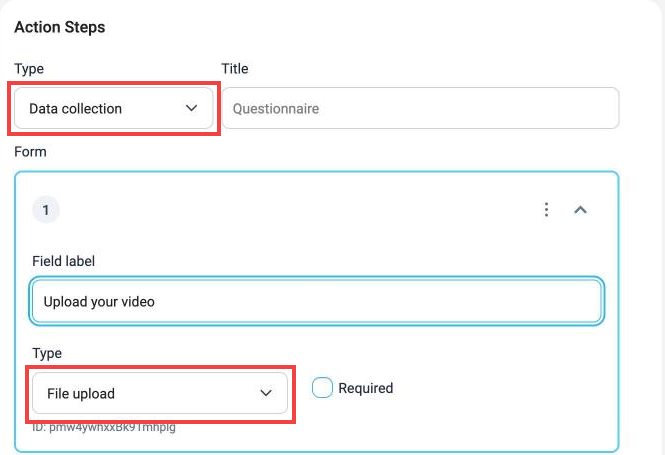
Uses form fields to collect responses from advocates. See the Data Collection article for full details on setup and configuration.
To collect a video, add a File upload field. Ask advocates for files under 30 MB; MP4 or MOV is recommended. Larger files are the most common reason uploads fail.
Social Follow
Directs advocates to follow a designated social media account.
Social Posts
Requires advocates to create a public post on a supported social platform. Supported platforms include:
- Facebook, Instagram (Posts and Reels), Pinterest, TikTok, YouTube (Posts and Shorts), Twitch, and Strava
Submitted posts are stored in the Content tab for reuse and use in galleries.
If your program requires a post URL for Instagram posts, advocates add the link when they submit.
🚨 Note: Posts must be set to public for this action step to work.
💡 Pro Tip: Specific hashtags and mentions are required for tracking, and we recommend using a unique hashtag for each challenge running on the same social platform.
Social Evidence
Advocates submit proof of a post that Duel can't collect automatically, such as a story. When you add the step, choose the Social post type:
- Instagram reel
- Instagram story
- TikTok story
- YouTube short
Then choose what advocates must provide: tick Require screenshot, Require post URL, or both. You can also add a Form to collect extra information.
TikTok stories don't have a link, so when you choose TikTok story the Require screenshot and Require post URL options don't appear: advocates upload a screenshot. You can still add a Form.
💡 Good to know about story challenges
- TikTok story submissions count as TikTok content in your content library filters and in Insights.
- Story challenges built with the general Evidence step don't appear under the Instagram or TikTok filters in the advocate portal. To have them show there, build story challenges with a Social evidence step.
- Importing challenges from a CSV supports Instagram story only for now. Create TikTok story challenges in the challenge editor.
💡 Tip: For Instagram Reels and YouTube Shorts, you can also use a Social Posts step (Instagram post or YouTube post), which collects the post for you.
Call to Action
Links advocates out to external content — for example, a newsletter sign-up or product page. Call to Action challenges can also be managed in bulk by uploading a list of email addresses.
Vote
Advocates vote for their favorite pieces of user-generated content (UGC). Votes are ranked, enabling automatic population of galleries based on popularity.
Challenge Referral
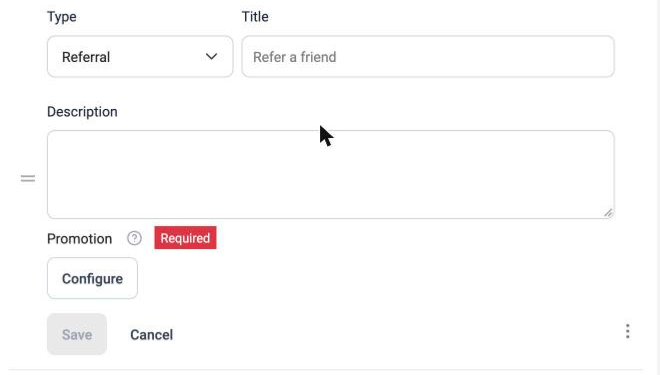
Gives advocates a referral code to share as part of the challenge. When you add the step, give it a title (for example, "Refer a friend") and a description, then click Configure under Promotion to choose the promotion the codes come from. Orders made with these codes appear in Orders > Challenge referrals.
For ongoing referral codes and affiliate links, see Referrals & Affiliates.