![duel_logotype-1.png]](https://info.duel.tech/hs-fs/hubfs/duel_logotype-1.png?height=37&name=duel_logotype-1.png)
Referrals & Affiliates let you reward advocates who share an affiliate link or a referral code, with commission, points or both. This guide covers how rules work, the settings, how to set it up, and personal referral codes.
On this page
Settings · Automatic commission management · How to set up · Video walkthrough · Personal referral codes
🚨 For affiliate links to work, your E-Store also needs to be set up.
How rules work
Each rule says who it applies to (a group and its tiers), how they share (a code, a link or both) and what they earn.
Rules work in "waterfall" order, from top to bottom. The first rule that matches an advocate's group and tier is the one that applies, so put the rules you want to win at the top. Use the arrows next to each rule to move it up or down.
📚 See how to boost commission or referrals with this feature, and read Promo Codes if you're using referral codes as well as affiliate links.
Settings
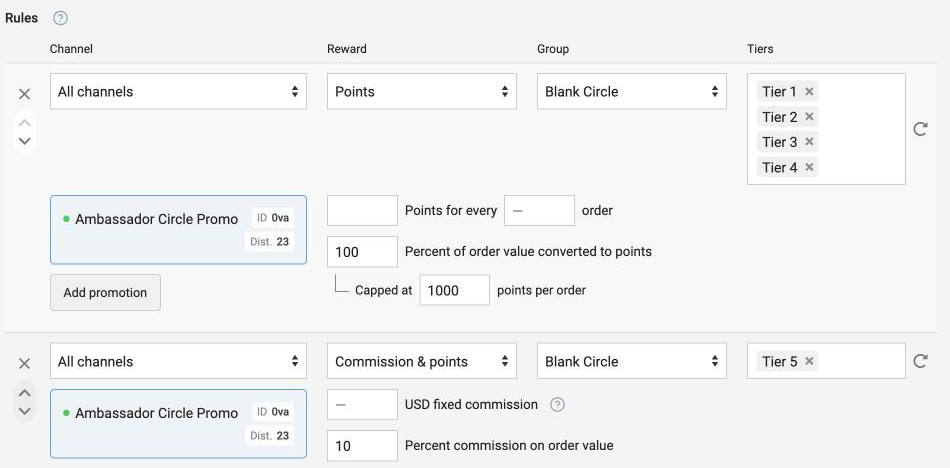
Each rule has four parts:
| Setting | Options |
|---|---|
| Channel how advocates share | Referral code: a code from a promotion you add to the rule. Affiliate link: an affiliate link. All channels: both. |
| Reward what advocates earn for a successful referral | Commission: a fixed amount per order, a percentage of the order value, or both. Points: a set number of points per order, or a percentage of the order value converted to points, with an optional cap per order. Commission & points: a mix of both. |
| Group and Tiers | Who the rule applies to. Choose a group, then the tiers in it. |
| Add promotion | For referral codes: the promotion the codes come from. Codes are given out automatically to advocates in the group and tiers the rule covers. |
Add promotion
In the window that opens you can:
- Choose Create new promotion, or Use existing promotion to reuse codes you've already set up.
- Pick the Type: Action (one promo code per action) or Personal (one promo code per advocate).
- Pick the Discount type: Amount, Percentage or Free shipping.
- Choose how codes are made: Automatic (with an optional prefix and the number of codes to generate) or Import from file.
- Set the Redemption limit (per promo code), and tick Renew code after redemption limit is reached to give advocates a fresh code when theirs runs out.
- Optionally set a start and end date.
Promote
If a rule has more than one batch of codes, use Promote to choose which batch advocates get first. A higher number means a higher priority.
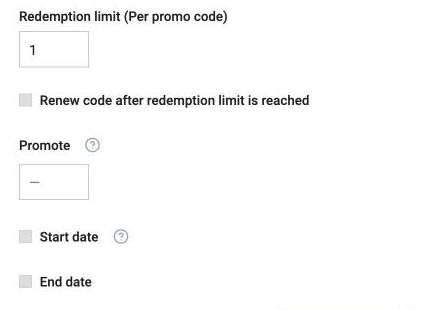
Example: if code batch 1 is promoted at 90 and code batch 2 at 80, advocates get a code from batch 1 while it still has codes, and only then from batch 2.
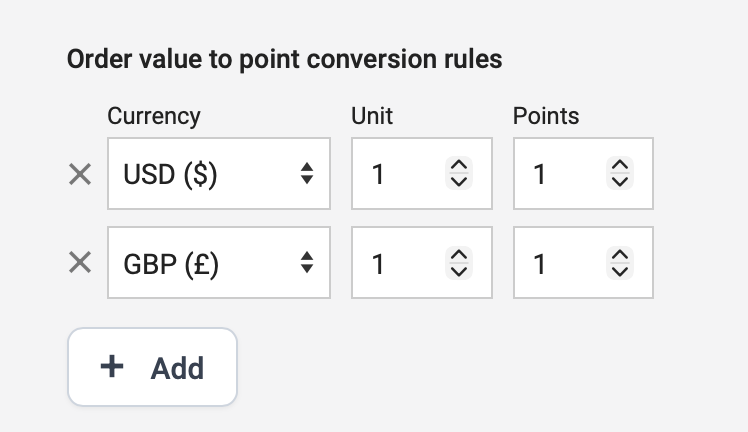
Order value to point conversion rules
If you reward points, set how many points an advocate earns per unit of each currency.
Automatic commission management
While an order is still pending, you can update the commission payout through our order tracking integration by adjusting the order. This is useful for cancellations and returns.

- Once an order is marked as complete, the automatic payment system pays the commission to the advocate's PayPal account.
- If you decide not to pay commission on an order, mark it as canceled under Orders › Referrals (commission) before it's marked as complete.
The window isn't fixed when an order is created. If you change it in your program settings, all orders that are still pending use the new timeframe, not just new ones.
Example: if your brand has a 30-day return policy, we recommend setting this to 45 days. That gives you 15 extra days to cancel a payment if you need to.
💡 If you don't use Duel's automatic payments, tick Disable automatic order commission management. You can still use Duel to track the commission you owe and have paid. Read more about commission.
Defer referral points attribution
Tick Defer referral points attribution to wait a set number of days before giving advocates points for a successful referral, for example to cover your return policy.
How to set up Referrals & Affiliates
- Go to Advocates › Referrals & Affiliates.
- Tick Enable referrals & affiliates, add your rules with Add, then click Save.
- If you're using affiliate links, set up the E-Store as well.
- Go to Advocates › Groups › Group profiles, open the profile your group uses, and go to the Overview page tab.
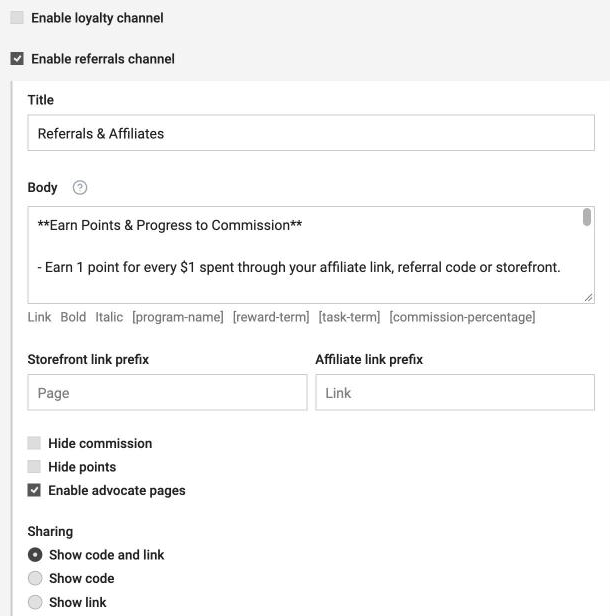
- Tick Enable referrals channel and add a Title and Body explaining your referral rules and offer to advocates. You can add placeholders such as [commission-percentage].
- Choose what advocates see: tick Hide commission or Hide points to hide pending and paid commission or points in the portal, and use Sharing to show the code and link, just the code, or just the link.
💬 We recommend linking to, or summarizing, how commission is paid in the referrals channel Body.
Video walkthrough
Personal referral codes
To give each advocate their own code instead of one from a shared batch:
- Make a CSV with two columns, code and email: one row per advocate, with the code you want them to have and their email address.
- On the rule for the advocate's tier, click Add promotion › Create new promotion.
- Set the Type to Personal (One promo code per advocate) and choose the discount.
- Under Promo code creation, choose Import from file, click Import codes (.csv) and upload your file.
- Set the redemption limit, tick Renew code after redemption limit is reached if you want, and click Save.
- So advocates keep their code when they move up a tier, add the same promotion to the next tier's rule with Add promotion › Use existing promotion.
- Click Save at the top of the page.
📚 For a CSV template, a narrated video and how to add codes for more advocates later, see Hyper Personalized Referral Codes.