![duel_logotype-1.png]](https://info.duel.tech/hs-fs/hubfs/duel_logotype-1.png?height=37&name=duel_logotype-1.png)
Where to find Email Communications
Email Settings
Email Categories
Editing an Email
Setting up Reminder Emails
Suggested Content Blocks
Brand Asset Reference
Video Walkthrough
This article walks you through setting up and customising your advocate emails in Duel. It covers everything from global brand settings to editing individual email templates and adding reminder sequences.
Not sure what each email sends? See Advocate Emails: What Gets Sent and When for a full trigger and subject line reference. If you're just getting started, the Advocate Emails: Quick-Start Checklist covers everything you need to prepare before setup.
Where to find Email Communications
Email Communications is in the same location as before.
💻 Navigate to Advocates > Groups > Group Profiles > select your group profile > Email Communications
Once there, toggle on Emails V2 (top right of the page) to switch to the new system. You'll immediately see all of your triggered emails organised and ready to configure.
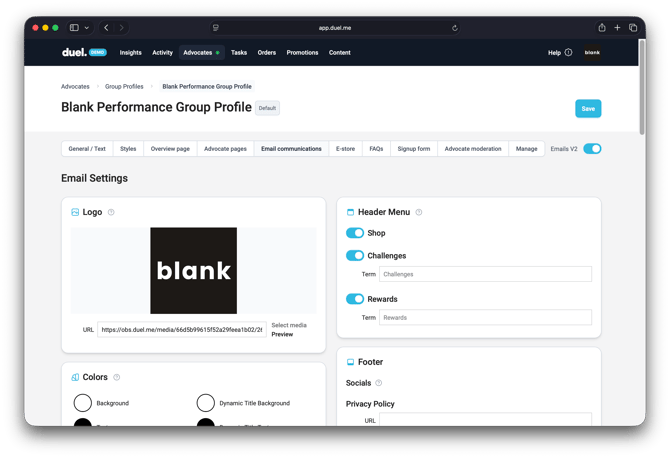
Email Settings
At the top of the Email Communications page, you'll find the global Email Settings section. These settings apply across all of your emails, so it's worth getting these right first.
- Logo — upload your brand logo; this will appear in the header of every email
- Colours — set your brand colours so all emails align with your visual identity
- Header menu — configure the navigation links shown in the email header
- Footer — customise your footer content
- Socials — add your social media icons and links
Email Categories
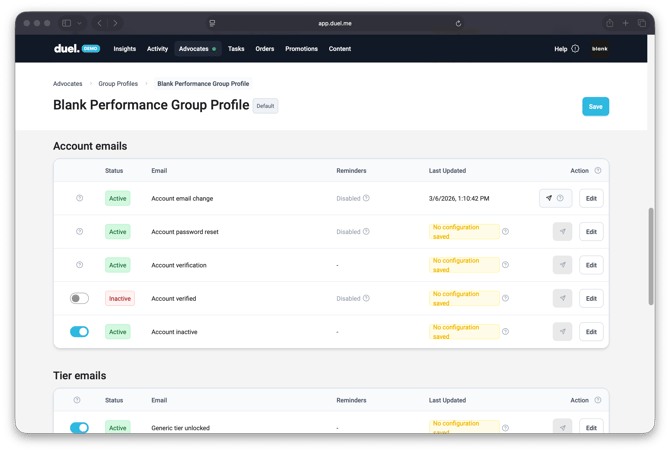
Your triggered emails are split into three sections:
Application emails
These cover advocate acceptance and rejections for different reasons. They are part of the Nurture Programme, so they will only appear and activate if your group has the Nurture Programme enabled. Availability will vary by brand.
Account emails
Everything related to passwords, verification, and account management — including the inactive flow email, which is covered in more detail below.
Tier emails
A set of emails for each tier unlock, plus the ability to add follow-up reminder emails. This is a significant step forward — you now have granular control over what advocates receive at each stage of their journey.
Editing an Email
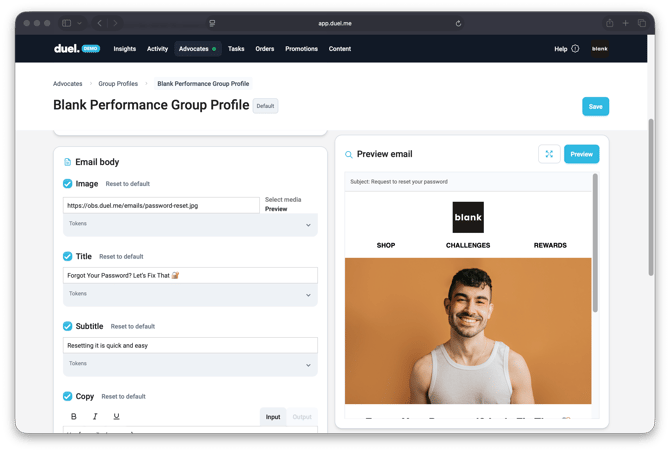
Each email has an Edit button that opens the email builder. Inside, you'll find:
- A live preview of the email template
- Pre-built content blocks based on suggested best practices (e.g. challenge prompts, tier progress callouts, affiliate links)
- Options to add new blocks — including full-bleed images, image + copy layouts, and more
- Arrow controls to move blocks up or down within the email
- The ability to upload brand-specific images or use the default imagery provided
💡 Pro Tip: Default imagery is designed to work across all email types straight away. If you want to make emails more brand-specific, you can upload custom images per block.
All emails follow a consistent structure, so advocates will experience a coherent look and feel across every communication they receive.
🚨 Note: The email builder is not drag-and-drop — use the arrow icons to reorder blocks up or down.
At the bottom of each email editor, you'll find a Send test email button. This sends a preview to the email address you're logged into Duel with. You can use this to check how the email looks on both desktop and mobile.
Setting up Reminder Emails
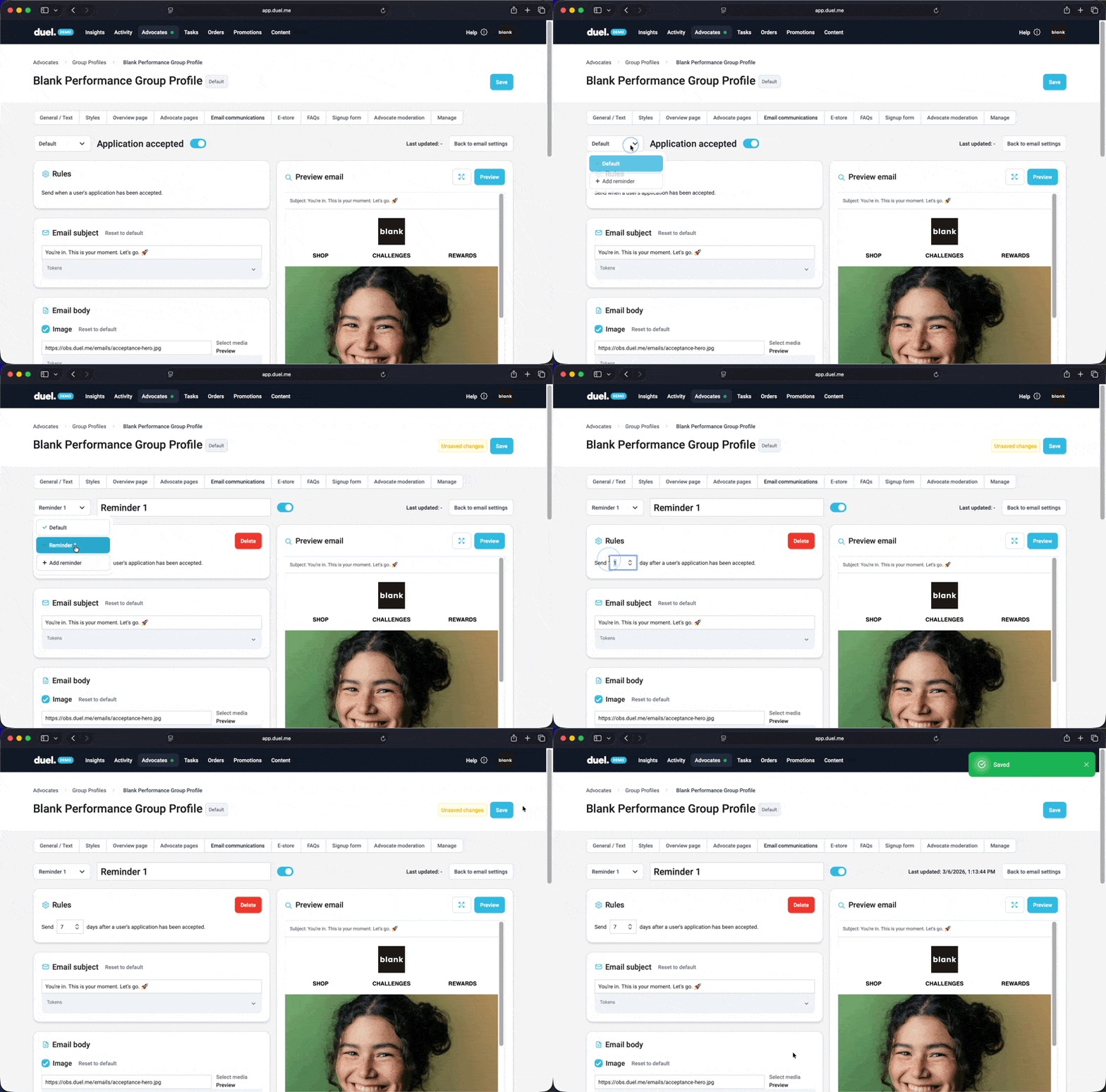
Within each email, you can configure one or more reminder emails — follow-up messages sent to advocates who haven't taken action after a set period.
- Scroll to the top of the email editor
- Click Default > Add reminder
- Give the reminder a name (e.g. "Reminder 1")
- Set the trigger rules:
- If inactive — send X days after the advocate last completed a challenge
- Default — send X days after the original email was triggered
Once saved, your reminders will be visible in the email list alongside the parent email, making it easy to see which emails have follow-ups configured.
💡 Pro Tip: You can add more than one reminder per email if you want a multi-touch follow-up sequence.
Suggested Content Blocks
Inside several emails, you'll find pre-built suggested blocks designed to drive advocate engagement. Examples include:
- Affiliate link block — surfaces the advocate's unique referral link
- Remaining challenges block — shows challenges the advocate still needs to complete (note: this requires manual updating)
- Social proof blocks — e.g. "233 creators are in Tier 2 right now — join them"
Brand Asset Reference
Not sure what to prepare before you start? Checkout the design requirements sheet for a full overview of every brand asset field and where it appears in the email template — useful to share with your design team before setup.
Video Walkthrough