![duel_logotype-1.png]](https://info.duel.tech/hs-fs/hubfs/duel_logotype-1.png?height=37&name=duel_logotype-1.png)
In short: Automated Flows are the emails Duel sends for you when an advocate does something: they're accepted, they verify their account, they unlock a tier, or they go quiet. Set each one up once, in your brand's look and voice, and it keeps working in the background. Add reminders so advocates who don't act get a second nudge.
📑 On this page
📚 Related guides: Advocate Emails: What Gets Sent and When lists every email and its trigger. The Advocate Emails: Quick-Start Checklist covers what to prepare before you start.
🧭 Automated Flows or Comms Hub?
Duel has two ways to email your advocates. Ask yourself one question: am I choosing a behaviour, or a date?
| Automated Flows | Comms Hub | |
|---|---|---|
| What it is | Emails that send themselves when something happens | Campaigns you build and send |
| What sets it off | A behaviour: joins, verifies, tiers up, goes inactive | A date and time you choose |
| Who gets it | Whichever advocate triggers it | An audience you choose from your programme data |
| Set-up effort | Once, then it runs itself | Every send |
| In one line | "Whenever this happens, send that" | "Send this, to these people, on Tuesday" |
Want to send a newsletter, digest or announcement? Use the Communications Hub.
💻 Where to find Automated Flows
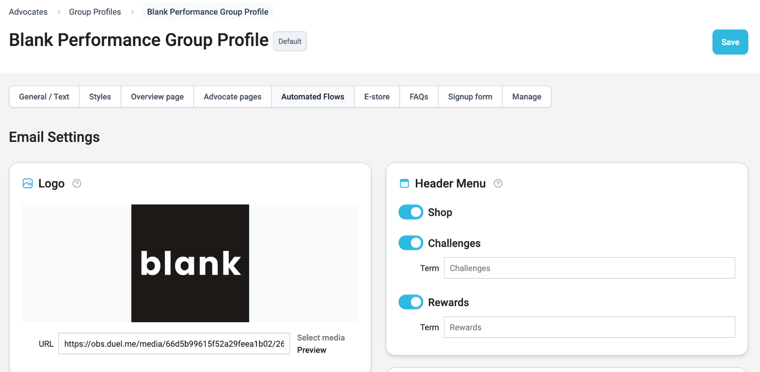
Go to Advocates › Groups › Group profiles, open your group profile and click the Automated Flows tab.
🗓️ Switched on by Duel. Your Brand Partner turns on Automated Flows sending for your programme once your emails are ready. Until it's on, you can edit and test your emails here, but they aren't the emails your advocates receive. Not sure where you stand? Ask your Brand Partner.
⚠️ See an Emails V2 toggle? If there's an Emails V2 toggle at the top right of the tab, your programme is still on the legacy emails. Ask your Brand Partner before you switch it, so nothing changes for your advocates by surprise.
💡 One set of emails per group profile. Your emails belong to the group profile, so every group that uses that profile gets the same emails. If your groups need different emails, they need different group profiles.
🗺️ Setup at a glance
| Step | What you do | How often |
|---|---|---|
| 1. Email styling | Logo, colours, header menu, footer | Once |
| 2. Review your emails | See what's on, what's off and what has reminders | Once |
| 3. Edit each email | Swap in your copy and imagery | Once per email |
| 4. Tier emails | One email for every tier, or a different one per tier | Once |
| 5. Reminders | Follow-ups for advocates who don't act | Optional |
| 6. Test and save | Send yourself a test, switch emails on, click Save | Every change |
🎨 1. Set your email styling
Email Settings, at the top of the Automated Flows tab, apply to every automated email, so set them first.
- Logo: pick an image from your media library with Select media, or paste a URL. It sits at the top of every email.
- Colors: the background and text colours, the logo and header menu background, your buttons (CTA), and the dynamic content areas. At the moment only Background changes how your emails look, so check the preview after you change a colour.
- Header Menu: switch the Shop, Challenges and Rewards links on or off, and rename them in Term if your programme uses different words.
- Footer: add your Instagram, Youtube and Facebook links, and your Privacy Policy URL.
⚠️ Click Save. Changes on this page aren't kept until you click Save (top right). If you see Unsaved changes next to the button, you still have work to save.
📬 2. Get to know your emails
Below Email Settings, your emails are grouped by when they send. Each row shows:
- The toggle and Status: Active emails send, Inactive emails don't. No configuration saved means nobody has set that email up yet.
- Reminders: how many follow-ups are on (for example, 1/1 reminders active). Disabled means that email type can't have reminders. A dash means none have been added yet.
- Action: the paper plane sends you a test, and Edit opens the email.
| Section | What's in it |
|---|---|
| Application emails | Application accepted (your welcome email), the two rejections (Inaccessible profile for private accounts, and Unsuitable profile), and Application resubmission request. You may see more, depending on how your programme is set up. |
| Account emails | Account verification, Account verified, Account email change, Account password reset, Advocate details updated and Account inactive. |
| Tier emails | Generic tier unlocked, plus an optional override for each tier. See step 4. |
| Challenges emails | Emails about an advocate's challenge submissions, such as the Music notice used with Music Moderation. |
| Digest emails | The legacy programme digest, which only sends when it's switched on. For a digest you design and target yourself, use the Communications Hub. |
💡 Account verified is off by default. Switch it on if you want advocates to get a confirmation once they've verified their email address.
✏️ 3. Edit an email
Click Edit on any email. You'll see:
- Rules: what makes the email send, for example "Send when a new tier is unlocked."
- Email subject: the subject line advocates see in their inbox.
- Email body: the blocks that make up the email, usually Image, Title, Subtitle, Copy and Call To Action.
- Preview email: a live preview on the right. Click the expand icon to see it full size.
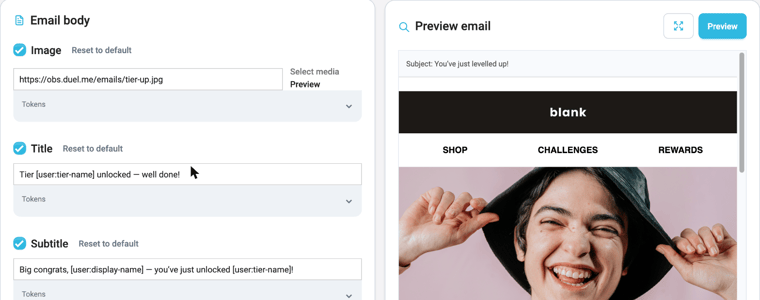
To make an email your own:
- Rewrite the subject and each block in your brand's tone of voice. Advocates read these on their phones, so keep the copy short.
- Swap the default image for one of yours with Select media. The default images work for every email type, so you can start with them.
- Untick a block's checkbox to hide it from the email.
- Click Add block to add more. Choose from Image, Title, Subtitle, Copy, Call To Action, Split Hero and Alternating Quad. The ⋮ menu next to it has Add suggested, which adds Duel's suggested blocks for that email, and Delete all.
- Changed something you didn't mean to? Click Reset to default above that field.
Personalise with tokens
Tokens are placeholders that Duel fills in for each advocate when the email sends. Open Tokens under any field to see the ones you can use there, and click one to add it. For example:
| Token | Becomes |
|---|---|
[user:display-name] | The advocate's name |
[user:tier-name] | The tier they've just unlocked (tier emails) |
[program:name] | Your programme's name |
💡 Example: Big congrats, [user:display-name]! You've just unlocked [user:tier-name]! reaches an advocate as Big congrats, Sam! You've just unlocked Gold!
🏆 4. Set up your tier emails
You choose how much to tailor your tier emails:
- Generic tier unlocked sends every time an advocate moves up a tier. Use
[user:tier-name]so one email works for every tier. - Tier unlocked overrides replace the generic email for one tier. Switch on an override when a tier deserves its own message, for example to show off that tier's rewards.
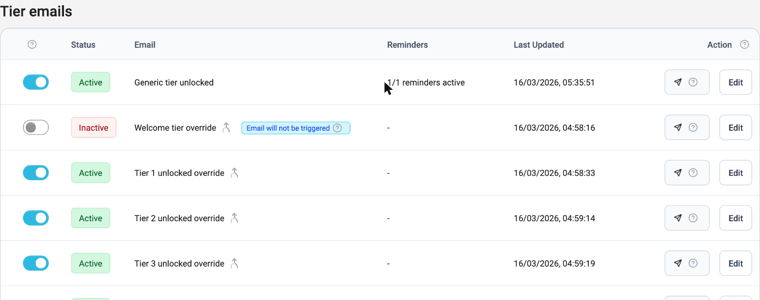
💡 Why the Welcome tier override never sends: advocates don't unlock the welcome tier with challenges. They're placed in it when they're accepted, so Application accepted is their welcome email. You can still add reminders to the Welcome tier override once it's switched on.
🔔 5. Add reminders
A reminder is a follow-up for an advocate who hasn't acted on the first email. Most emails can have them, including the welcome (Application accepted), tier and inactivity emails. If an email's Reminders column says Disabled, it can't have reminders.
- Open the email with Edit.
- Open the Default dropdown at the top left and click Add reminder.
- Give the reminder a name, for example "Reminder 1".
- Under Rules, set when it sends. Depending on the email, you can choose:
- Default: a set number of days after whatever triggered the email, for example after the advocate's application was accepted.
- Inactive user: a set number of days after the advocate last completed a challenge (or was accepted, if they haven't completed one yet). You'll see this option on tier emails.
- Write the reminder's subject and body. It's a separate email, so give it a stronger nudge than the first.
- Click Save.
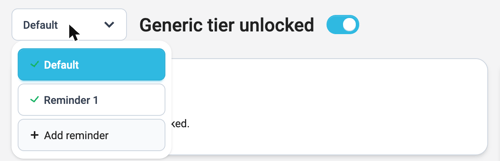
Use the same dropdown to switch between the original email (Default) and its reminders. Each reminder has its own on/off toggle and a Delete button.
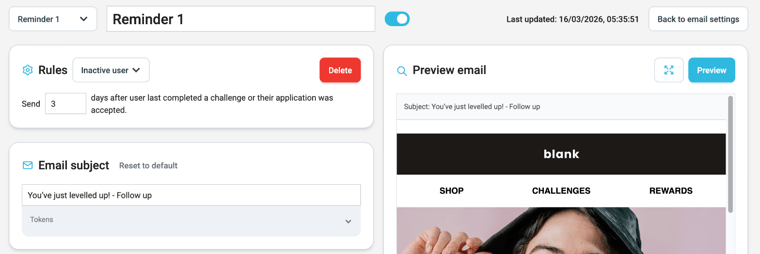
💡 Pro tip: add more than one reminder for a multi-touch sequence. For example, send Account inactive at 7 days and a firmer reminder at 14.
✅ 6. Test, switch on and save
- At the bottom of the editor, use Send test email to send the email to the address you log in to Duel with. You can also click the paper plane next to an email in the list.
- Open the test on your phone and on desktop. Check the images, links and tokens.
- Use the toggle to switch the email to Active.
- Click Save.
⚠️ Active emails go to real advocates. Once Automated Flows sending is on for your programme, any change you save to an Active email reaches the next advocate who triggers it. Send yourself a test before you save.
🖼️ Brand asset reference
Not sure what to prepare? The email design requirements in Figma show every brand asset and where it appears in the email. Share it with your design team before you start.
❓ FAQs
I've edited my emails. Why aren't advocates getting them?
Check that the email is Active and that you clicked Save. If both are fine, Automated Flows sending may not be on for your programme yet. Your Brand Partner can check and switch it on.
Do I need to know HTML?
No. Everything is built from blocks. You type your copy and pick your images.
Can I schedule an automated email for a specific date?
No. Automated Flows send when an advocate does something. To send on a date you choose, use the Communications Hub.
Can we send these emails from our own CRM instead?
You can edit all of these emails in Automated Flows. If you'd rather send account emails from your own email platform, speak to your Brand Partner about what's possible for your programme.
Who sees my test email?
Only you. Tests go to the email address you log in to Duel with.
What happens if I leave an email as it is?
If it's Active, it sends with Duel's default copy and imagery. It works, but it won't sound like your brand, so it's worth personalising your welcome, tier and inactivity emails first.
What does each email say, and when does it send?
See Advocate Emails: What Gets Sent and When for every trigger and the default subject lines.
🎥 Video walkthrough
This video was recorded when Automated Flows launched as V2 emails in March 2026, so some labels in it may look different.