![duel_logotype-1.png]](https://info.duel.tech/hs-fs/hubfs/duel_logotype-1.png?height=37&name=duel_logotype-1.png)
💻 Navigate to Advocates > Groups > Group profiles tab > + Create to add a new group profile
What's a Group Profile?
A Group Profile controls the visual design and on-page copy used across one or more Groups.
It allows you to define how a Group looks and reads, including branding elements and written content, ensuring a consistent experience for Advocates.
You can apply the same Group Profile to multiple Groups if they require the same design and messaging.
Each Group Profile contains multiple tabs and configuration settings, allowing you to customise different aspects of the Group’s appearance and content:
General / Text
Styles
Overview page
Advocate pages
Automated Flows
E-store
FAQs
Signup form
Moderation Rules
Manage
🚨 Always click Save (top right) after making changes.
☑️ General / Text
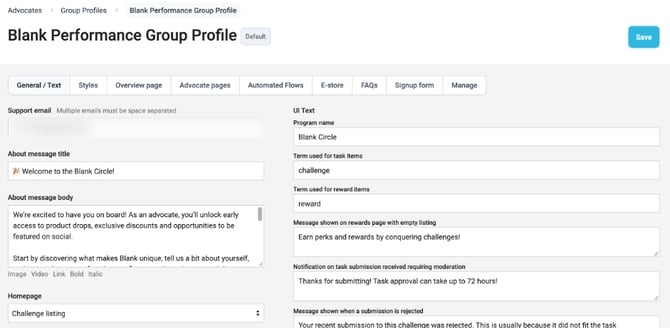
The General/Text tab is where you can add the following properties:
- Support email
- About message (title and body, the welcome message advocates see)
- Homepage and External call to action
- Logo and Default profile picture
- Favicons
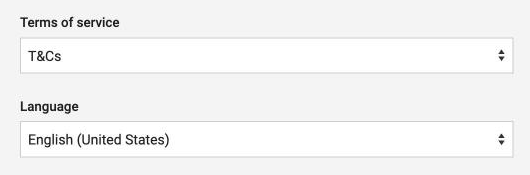
- Terms of service
- Language
- UI Text
Language translates the portal's system copy. Any custom text you add, such as your About message or challenge copy, needs translating by hand. For more on languages see this article.
☑️ Styles
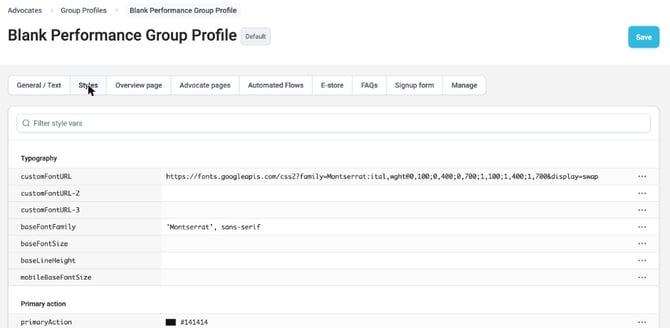
The Styles tab is where all the graphics that give shape to the programme live. This is where you can add additional CSS for portal branding.
☑️ Overview page
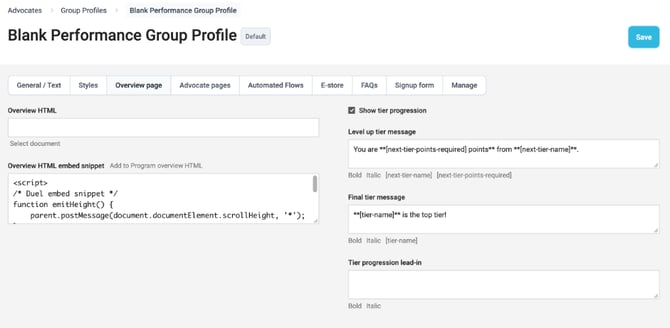
The Overview Page tab is where the copy for the third tab of the programme lives. This is where you add your Overview HTML and set the tier progression messages advocates see.
☑️ Advocate pages
The Advocate Pages tab contains all the copy displayed across your Advocate Pages. For more detailed guidance on configuring Advocate Pages, please refer to the dedicated article in the Knowledge Base.
☑️ Automated Flows
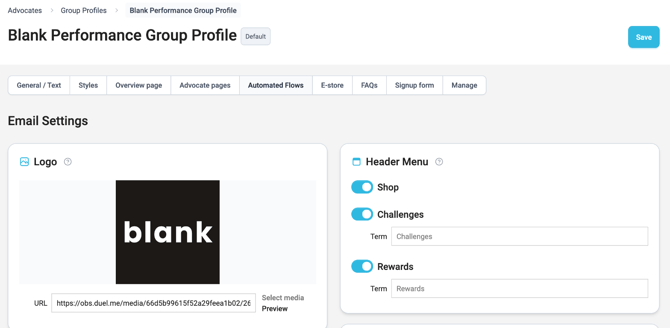
The Automated Flows tab is where you set up the emails Duel sends automatically when an advocate does something. It starts with Email Settings (logo, colours, header menu, footer social links and privacy policy URL), followed by your emails in five sections: Application, Account, Tier (one generic email plus optional overrides for each tier), Challenges (such as the Music notice) and Digest. Switch each email on or off, edit it, and send yourself a test.
📚 Advocate Emails: Automated Flows Setup Guide
📚 What Gets Sent and When
☑️ E-store
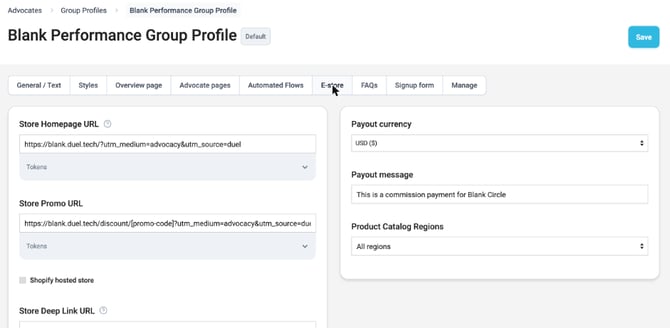
The E-store tab is where you are able to set up the E-store for all relevant groups within the same Group Profile. Set your Store Homepage URL, your Store Promo URL (if relevant) and any UTM parameters, plus the Payout currency, Payout message and Product Catalog Regions.
☑️ FAQs
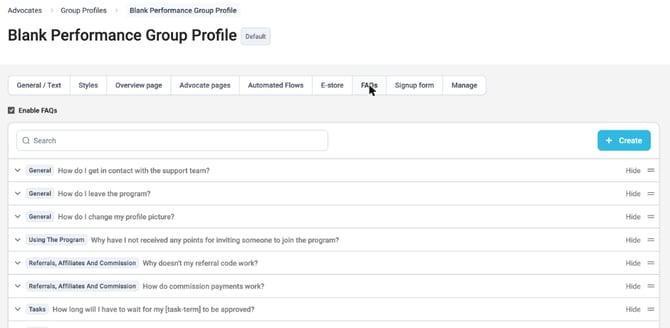
The FAQs tab is the section where you are able to setup, manage and update the frequently asked questions in the programme portals.
☑️ Signup form
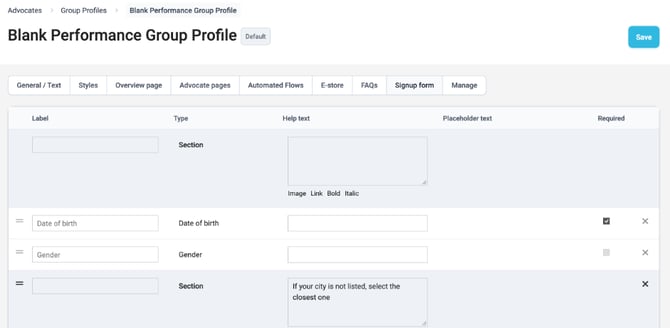
The Signup form tab is the section where all the screening questions and criteria that give shape to the signup page live.
☑️ Moderation Rules
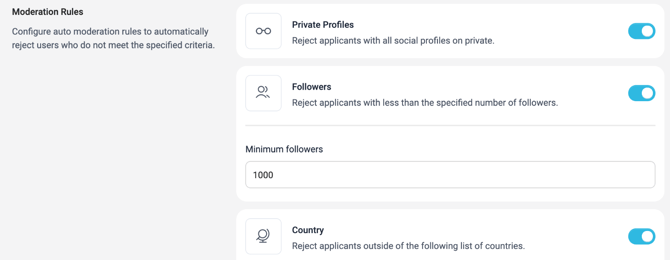
The Moderation Rules tab is where you set rules to automatically reject applicants who don't meet your criteria:
- Private Profiles: reject applicants with all social profiles on private.
- Followers: reject applicants with fewer than your minimum number of followers.
- Country: reject applicants outside your list of allowed countries.
If your programme uses Moderation Intelligence, you won't see this tab. Your rules are in Settings › Moderation Rules › Sign-ups instead.
☑️ Manage
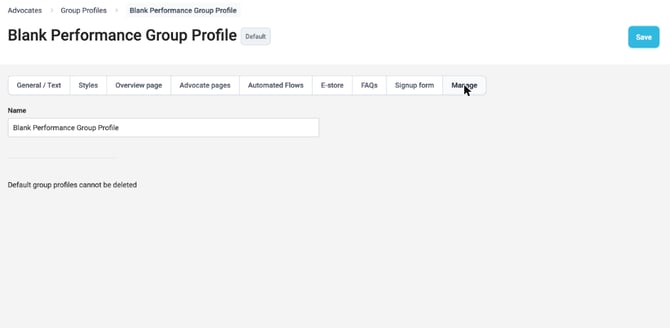
The Manage tab is where you will be able to manage a group profile, such as editing its name or deleting it.
🚨Please note that you are not able to delete the default group profile.